Gutenberg: Expectations vs. Reality

Unless you have been living under a rock for past several months, then you must have heard of Gutenberg and the controversies surrounding it. Don’t worry if you haven’t yet cause I am here to brief you about what Gutenberg is, what you can expect and what it means for the future of WordPress.

What is Gutenberg?

You might be wondering from where did this Gutenberg name come from. Is it just a random name or does it have any worthy significance? Well, it’s the later one. Gutenberg is named after Johannes Gutenberg, who is the inventor of movable type printing press. As would the name suggest, Gutenberg is a WordPress Content Editor with an objective to modernize the blog writing with its tons of features.

Right now, Gutenberg is only used as a Plugin for testing out purposes. But It will soon be the default Content Editor from the upcoming WordPress 5.0 release. So, everyone should better get started to be familiar with it.

Key Features

  • Introduction of Blocks
  • Rich Content Layouts
  • Principles of Page Builders
  • Handling Media Contents
  • Widgets & Embeds
  • Drag & Drop Functionalities

Expectation

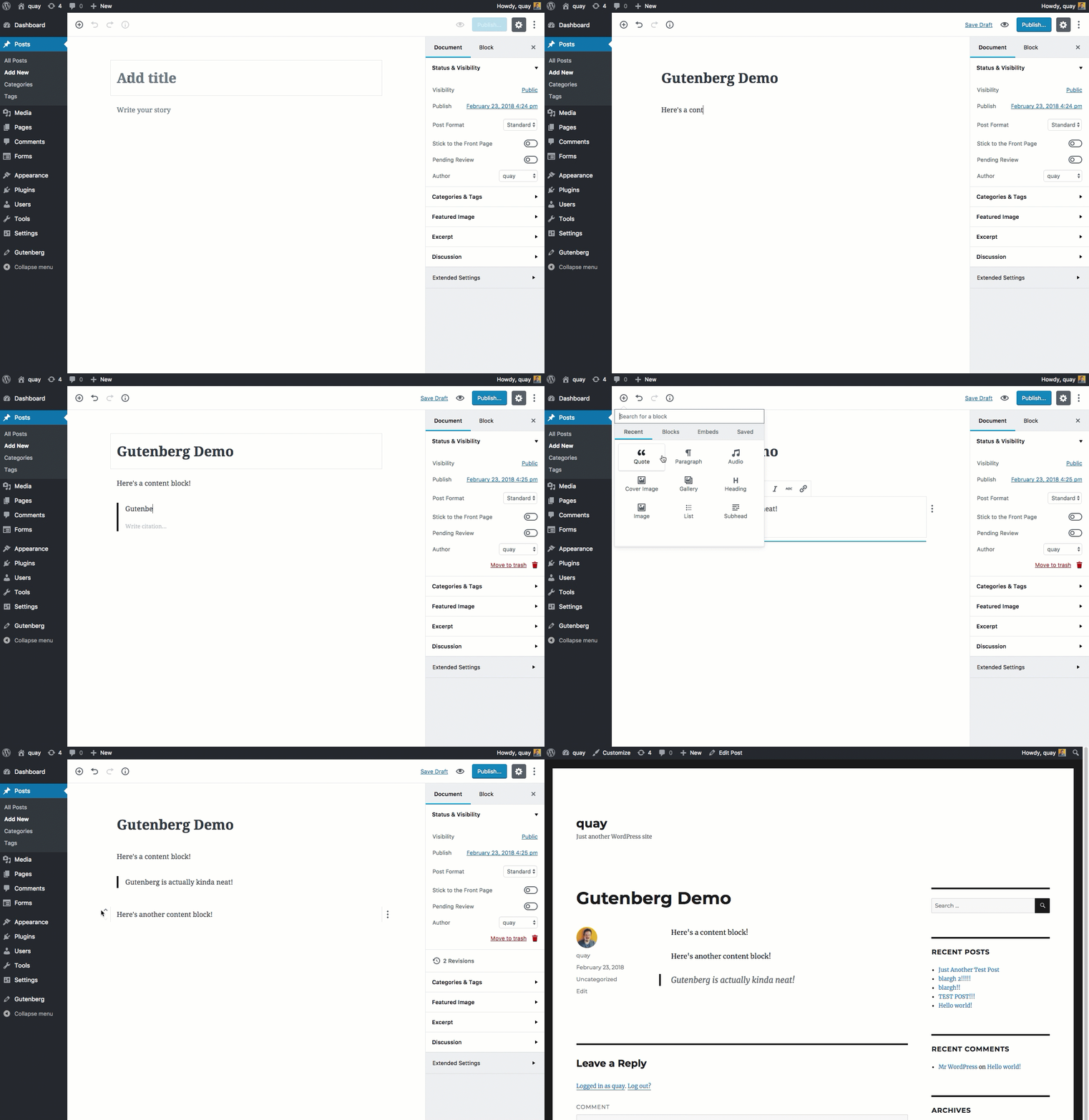
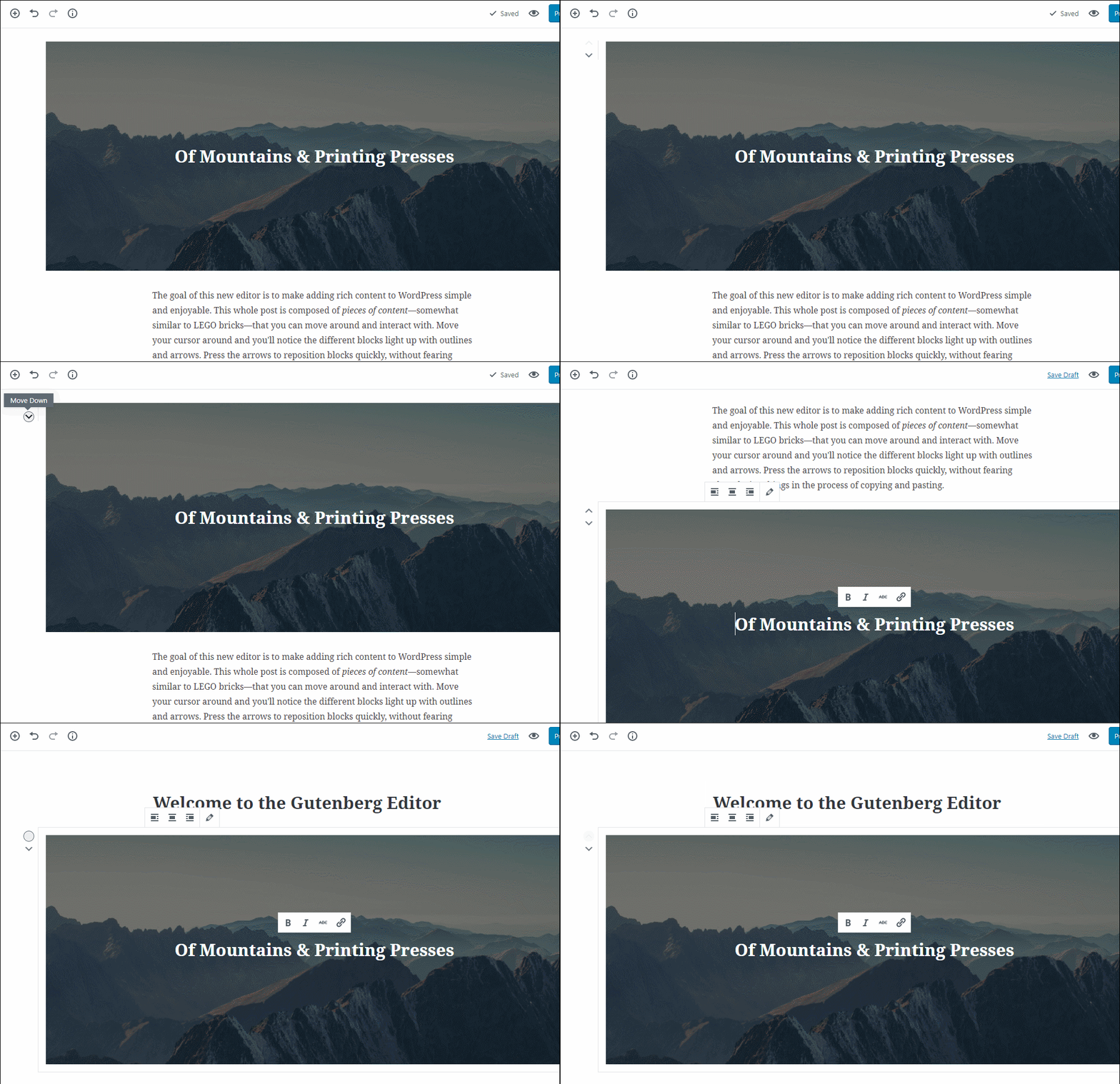
With the help of Gutenberg, users will be able to create Rich Contents with ease. Creating Rich Contents includes Gallery images, Embeds links, Layout Elements, Widgets and many more. The inclusion of Block system is supposed to give users the freedom to drag and drop their paragraphs or the block elements from one place to another in the blog section.

Reality

In reality, Rich Content creation is indeed set to become a lot easier in many aspects with Gutenberg. However, for simple blog posts, it does seem like a lot of hassle especially for newbies or the average WordPress users. This has caused a lot of backlash from the lots of WordPress users and is one of the major reasons of the controversies surrounding Gutenberg.

Expectation

Gutenberg will serve all the purposes of the default Post Editor that we are all used to work with.

Reality

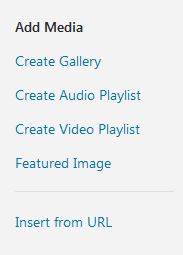
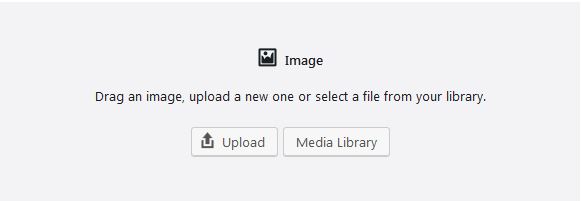
Gutenberg does indeed serve most of the functionalities that we used to deal with the default Post Editor. However, there are still few functionalities which don’t seem to work with Gutenberg. For instance, users had the option to insert media from URL. But this option doesn’t exist in Gutenberg. As a result, many users are seen complaining.


Expectation

Gutenberg will be compatible with all the WordPress Plugins and Themes.

Reality

When Gutenberg was first introduced, it had compatibility issues with a huge number of Themes and Plugins. After realizing that WordPress is going to make a major step with Gutenberg by making it the default content editor, developers from Plugins and Themes have started working on it. Themes such as MH Themes, SimpleMag, Avada and many more are still not fully compatible with Gutenberg. The work is still going on from all the other Themes developers to make their products fully compatible with Gutenberg.

Conflicting with their existing Plugins have also been a major headache for lots of the users and the developers. For instance, users who are using Nextgen Gallery are not able to upload their gallery images into their blog posts through Gutenberg. Most importantly, users who are using Page Builders such as Elementor, WPBakery, Beaver Builders are facing constant issues on their site for using Gutenberg. Many pages seem to be breaking down due to Gutenberg.

So, there are still tons of works left to do for making this work for all Plugins and Themes.

Expectation

Gutenberg will satisfy all the WordPress users with its functionalities and features.

Reality

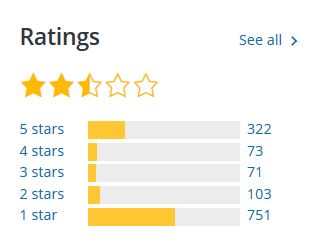
So far, It has been the complete opposite. Gutenberg has been the most controversial thing WordPress has done so far. Its review on wordpress.org seems to strongly agree with that statement. As of right now, almost 60% users have rated Gutenberg 1* which is quite astonishing and a bit embarrassing as well. The number of bad reviews are piling up every single day which looks really bad as well.
Expectation

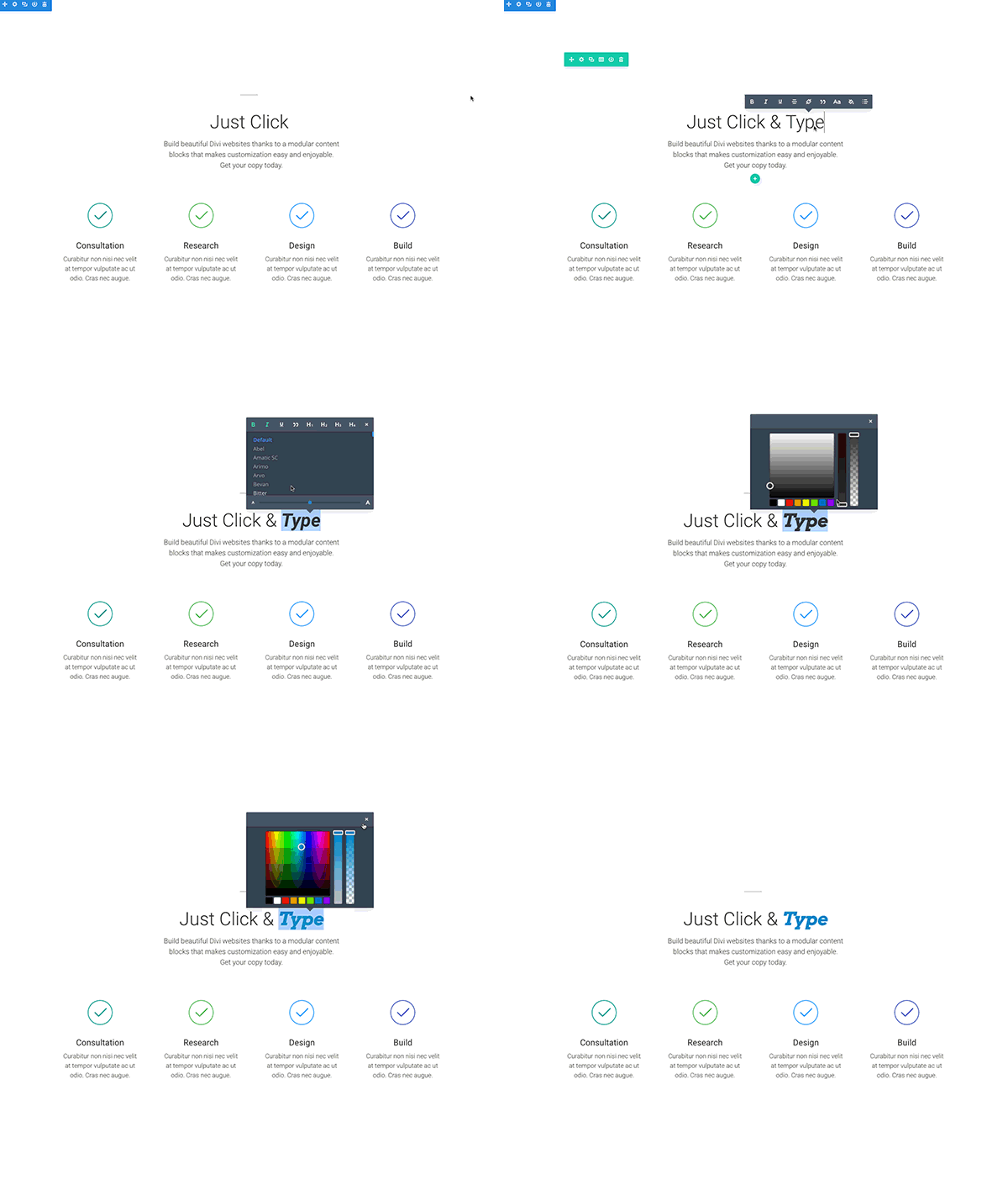
Gutenberg will make the Page Builders Plugins even more competitive.

Reality

This is what the CEO & Co-Founder of Elementor– Yoni Luksenberg said regarding the introduction of Gutenberg:

Gutenberg brings an important functionality to millions of users, and new challenges for theme and plugin developers. We will find the best path to work alongside the new editor, and keep leading the field of WordPress design.

Theme and Plugin developers are welcoming this challenge and want to be even more competitive by releasing brand new features and improving them. This sort of healthy competition is very necessary to move forward for everyone. This will hopefully lead to an exciting time for all the users.

Summary

To sum up, The reason why there are so many controversies surrounding Gutenberg is that WordPress is planning to turn this into a default blog editor in the upcoming future. Many users including me are not happy with this decision as there are still lots of issues and lacking Gutenberg has.

However, if WordPress doesn’t force users to use Gutenberg by default and give them the option to choose from the current Post Editor and Gutenberg itself then it would satisfy all group of users. I honestly think that keeping Gutenberg as a Plugin or as alternative Post Editor would be the right thing to do.

WordPress Plugin Development from Scratch – Part 1 [What is a WordPress Plugin?]

What Is A WordPress Plugin ?

A WordPress plugin is a standalone set of code that enhances and extends the functionality of WordPress. By using any combination of PHP, HTML, CSS, JavaScript/jQuery, or any other web programming language, a plugin can add new features to any part of your website, including the Admin Control Panel. You can modify the default behavior of WordPress, or remove unwanted behavior completely. Plugins allow you to easily customize and personalize WordPress to fit your needs.

Plugins are never automatically overwritten or deleted when installing WordPress updates. If your plugin has coding errors, you can usually just deactivate it in the Admin Control Panel while you fix it. If your plugin has a serious error, WordPress will sometimes automatically deactivate it for you, allowing your site to continue functioning.


How do WordPress plugins work?

An important concept to understand in WordPress plugins are WordPress hooks, e.g. actions and filters. Hooks allows our plugins to run specific functionality at specific times within WordPress functions.


What are Hooks?

WordPress Plugins interact with core code using hooks. There are two different types of hooks.

  1. Action hooks (To add/remove functions)
  2. Filter hooks (To modify data that is produced by functions)

Actions and Action Hooks

When you visit any page of a WordPress website, a series of PHP functions (named actions) are called at various points, and they are attached to action hooks. Using the action hooks provided by WordPress, you can add your own functions to the list of actions that run when any action hook is called, and you can also remove pre-existing functions from any action hook. Action hooks dictate when the actions are called. Before the closing </head> tag of any page, the wp_head() action hook is called, and the actions that are hooked to wp_head() are run.

Action hooks are contextual – some are called on every page of your website, others are only called when viewing the Admin Control Panel, and so on. A full list of actions hooks and the context in which they are called can be found on the WordPress Plugin API/Action Reference page.

Actions

Actions are hooks triggered when WordPress performs events like publishing a post, initializing header and footer areas, creating a new user or deleting pages, etc. For example, the following is an action which runs specific functionality when admin menus are loaded in the administration panel:

add_action( 'admin_menu', ‘add_admin_menu' );

function add_admin_menu() {
// add a group of custom menus
}

admin_menu is an action hook provided by WordPress which allows us to run a function, add_admin_menu, for our needs right when WordPress is going to load administration menus.

Filters

In general, a filter function takes the input as unmodified data and returns the modified data. Filters sit between the database and browsers and perform certain operations on data, like when WordPress is generating pages or adding new posts in the database. For example, take a look at the following filter:

add_filter( 'comment_text',  'filter_words' );

function filter_words( $data ) {
// filter comment words and return the modified comment
}

In the above filter, comment_text is the filter name and filter_words is a callback function which will take the comments as input and filter the words, returning the modified comments to the output.

That’s it for today
In Next Part we will build our first WP Plugin

What is PHP and How to Use PHP in WordPress

How to use PHP in WordPress? Most web beginners’ common question.

Though PHP is a programming language, the written one uses to represent scripting language. PHP is an open source as well as WordPress. WordPress does not run PHP code in direct. But covers in HTML documents.

Today’s article body is all about PHP. Keep ahead with the following discussion.

Introduction of PHP

Developers should have great knowledge of PHP.

Why do they need? And what is PHP? How to use PHP?

So many questions. But the fact is PHP is both programming and scripting language. The developers tend to create dynamic websites.

Example of PHP code:

1 <?php

2      echo "Hello World!" ;

3 ?>


funtion.php is known as the theme functions. Usually, in WordPress, function.php needs to make templates. Both front-end pages and admin can control site by this likely plugin. The function.php file defines classes, filters and actions in themes. In your parent WordPress directory, themes have their own codes. Enable post formats, post thumbnails and navigation menus.

How to use PHP in WordPress?

Templates of themes are made by function.php. Users who have no programming knowledge can use WordPress. But if they are going to be web developers, for sure need to learn coding knowledge in PHP, HTML and CSS.

php opening tag <?  and php closing tag ?>

Running PHP code direct in WordPress posts or pages is strictly prohibited. The PHP pre-processor generates HTML output. The HTML output then displays on the browser screen. Join WordPress and log in and check WordPress Dashboard.

Steps to run PHP code in WordPress

1st Step: Install PHP Plugin

  • Log in to WordPress Dashboard
  • Visit how to install plugins
  • Install powerful PHP plugins such as Allow PHP Execute, PHP Everywhere and so on

2nd Step: Insert PHP Code in Posts

  • Press Add New Page or Add New Post
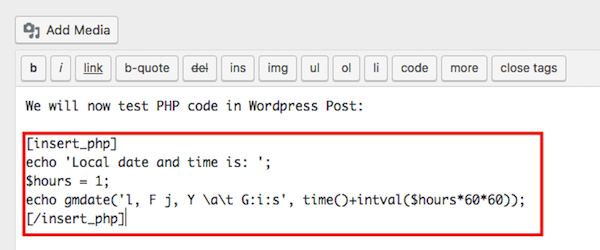
  • Start to put PHP code
  • Use short tags like [insert_php] and [ /insert_php]
  • Simply print out a date and time

3rd Step: Preview PHP Code on Posts

  • Open your saved post with PHP code
  • Watch how the PHP has executed

Wrap Up

Hope you will become a master on how to run PHP in WordPress. This article hopefully helps you a little bit. Also, useful to output local time, the response from another URL and content files on the server. But little knowledge is dangerous. Even though, WordPress is a platform to consider your knowledge of encoding. But for sure, to be a web developer, increase awareness of PHP syntax.

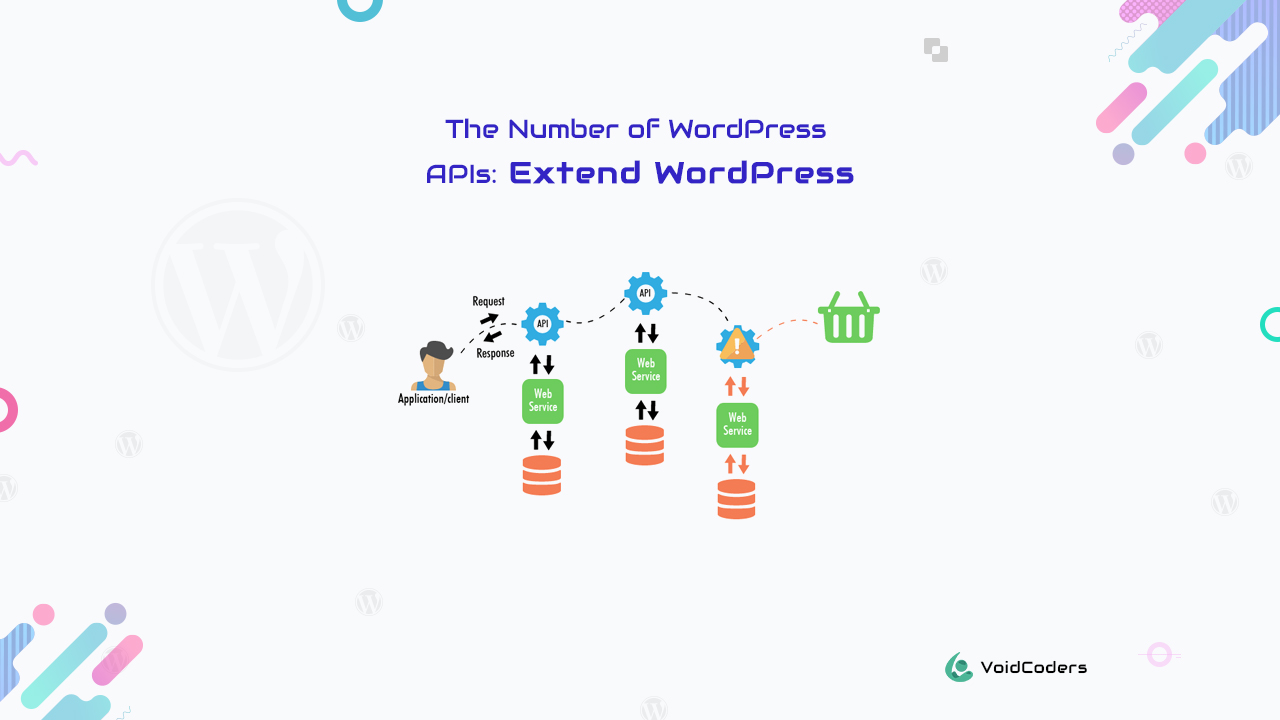
The Number of WordPress APIs: Extend WordPress

The number of APIs to create a plugin: extend WordPress.
WordPress is the #1 Content Management System all over the world. The APIs are effective to extend WordPress.
How? Let us focus on it.

WordPress API

WordPress Application Programming Interface is the extended form of WP API. The sections of WordPress are all together called API. APIs are the functions of the WordPress project.
The following WordPress APIs help to outspread WordPress.

Dashboards Widgets API

The most important and simple API is this one. Users can add and customize widgets by the Dashboard Widgets API. The filtering and hooking actions are responsible for this.
Filters change certain functions. But hooking is an action to activate themes and plugins.
Also, users need much knowledge of PHP and WordPress functions.

File Header API

This one consists of other functions and hooking action. The file header API keep records of plugin and theme meta-information. The header maintains the name and value of it. This can reach you to rank high on SEO in Google.

Database API

The database related API enlisted in one page. Those cover the functions with the given functionality. As like headers contain name values, so does database API. But the difference is Database API contains theme and plugins.

HTTP API

WordPress is the CMS where you are not required to learn to code. But requires great knowledge of PHP. The coding of WordPress is all together formed as an HTTP API. The HTTP API has formed to manage single API and standardize related HTTP objects.

File system API

For ensuring the security of local files, File System API has formed. Also, this is for updating WordPress and every property belonging to it. File System API is capable to connect local files. Without hosting support, this has automatic power to switch to FTP method.

REST API

JavaScript Object Notation (JSON) is an important object for developers. Developers sending and receiving option is JSON to interact with sites. WordPress REST API is this process name.
WP REST API is the endpoint for WordPress documented data. To create a single page application, a beginner has admin experience.

Metadata API

This is a standardized way for WordPress objects. Metadata API, the user can manipulate and retrieve objects’ metadata. A particular key-value pair represents metadata for the property. By differing only in their value, you can share the same key in multiple metadata.

Plugin API

Setting plugins in motion, changing the sentence in the article are part of this one function. Hooks action and filters are not the same as I have stated before. If you want to meet the same goal, choose Action or Filter of Hooks Database.
Other APIs of WordPress is available in WordPress.org.

API code for WP plugins

Including WordPress rules, user need code generated by websites. The API code allows accessing application programming interface. This prevents the probability of spam. To move forward with WP account and blogging, should have that code.
  • Move to WordPress.org and create an account

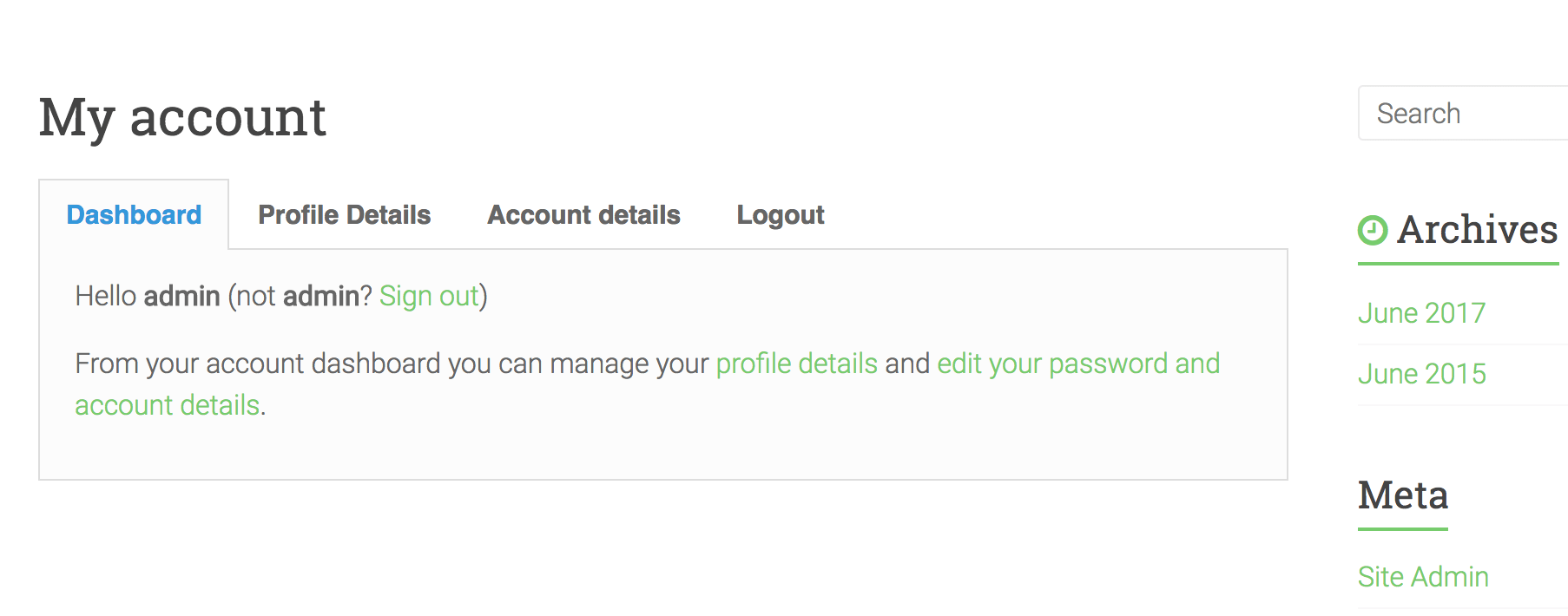
  • Log into My Account

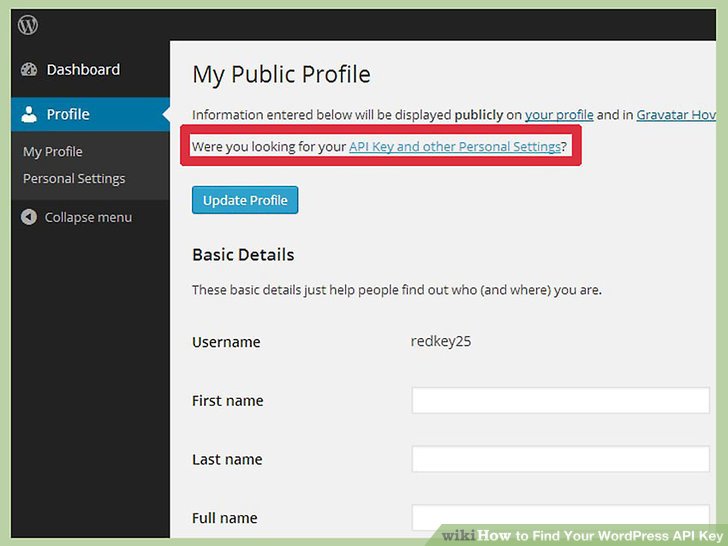
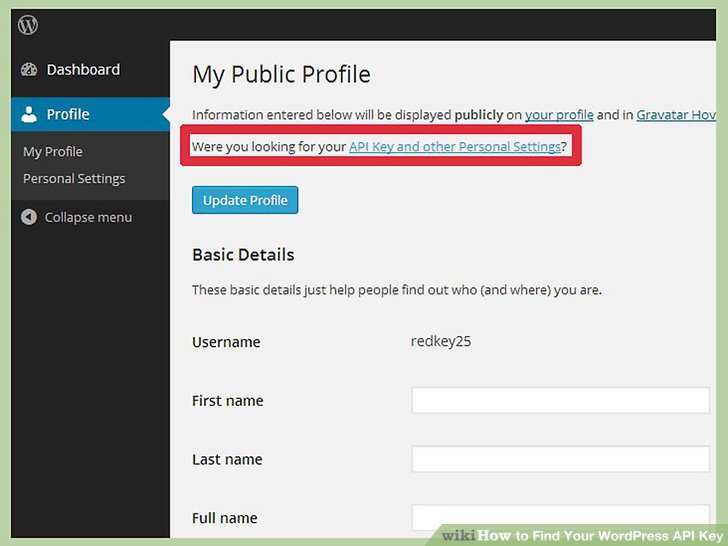
  • On the upper left side, press Dashboard > My Profile

  • The profile will show “API Key and other Personal Settings”. This will take you to the next screen.

Wrap Up

The WordPress API allows integrating into websites through plugins. Though, each APIs have specific terms of services. The interaction of software components should be great with GUI. This is only possible with API sections of WordPress. Good APIs make the program better in WordPress. It also helps to build blocks. So the #1 CMS, WordPress is available to the PHP experts.
Hope the newbies have a clear aspect in WordPress API. For more details, check the above APIs.

Future of WordPress: WordPress 5.0

Future of WordPress: WordPress 5.0, WordPress themes, WordPress plugins, WordPress community
Do you know what the elegant blogging platform is?
Which one has got the position of number 1 Content Management System (CMS)?
Which has empowered almost 60% of the world’s websites?
Many questions related to website building but the only answer is WordPress. It is the first choice of our web developers’ community. Without coding knowledge, anyone can blog. Also, they can develop websites.
By the passage of time, WordPress is also changing. It has included many features on future of WordPress 5.0. With web developers’ demand, need more qualified WordPress stocking this year. WordPress 5.0 must be innovative when custom post types merged into WordPress 3.0. New features of WordPress 5.0 will not only impact on themes but also plugins.
Let us have a look at 3 minutes updated features of WordPress 5.0.

WordPress 5.0

Gutenberg editor and plugin

  • Apply HTML and shortcodes to optimize visual allowance of the content
  • Beginner friendly responsive content

  • Dotnet one core support means developers can contribute to plugins for WordPress
  • Blocks for drag and drop editing

  • Replaced by TinyMCE post content editor
  • Posted links for embeds
  • Excerpts for subheadings

Push notification

  • Updated security concerns on push notification
  • The new update for themes, plugins and WordPress have automatic push notification

Front-end editor

Image result for front end WordPress gif

  • Faster than other visual composers
  • Lighter because of fewer functions
  • Availability to edit posts on page

App publish and mobile optimization

  • Apps can publish by app client
  • WordPress is available now on W10 UWP app, iPad app and Android tablet app

Singular content identifier

  • Separate the published article from duplicate ones
  • Publish individuality of different websites
  • Speech to text framework like from Google, Siri and Contains
This part of article is all about WordPress upcoming features news. These features will help you to create and design websites with full of new thoughts.

Future WordPress Themes

Future WordPress Themes are already accessible in marketplaces. Most of the best themes of 2018 for WordPress 5.0. Some of the premium themes such as Avada, Enfold, Be Theme, Bridge and Salient are 5 stars rated.
Previous WordPress themes were for large, bulk posts and charged with fluffy-bloat code. But these new WordPress themes will style with Gutenberg Blocks API. Thus a revolution is going to happen for the WordPress theme industry in 2018.

Future WordPress Plugins

Do you want to create custom layouts with custom blocks? WordPress 5.0 will allow the chance.
Since changes are happening through WordPress upgrades, this will impact plugins too. It will start with Gutenberg with a view to editing with front-end and create custom layouts. You can edit a blog for products with add cart option, viewing pictures and description of them.
Some of WordPress 5.0 based plugins are Easy GDPR and WooCommerce Wishlist. Here is not the end of the invention. More leading plugins are waiting for the ruling web development world.

Future WordPress Community

Matt Mullenweg will go a long way with WordPress progress. He is illuminating the probable future trends of WordPress. Generally, WordPress is moving into the unified interface. It is connecting freelancers, web developers, web companies and WooCommerce by Automattic. The initiative themes and plugins have increased the compatibility of JavaScript of users. Meanwhile, this Gutenberg based on GitHub from WordPress org. has named as WordPress 5.0. This versions’ has already amazed us. Web designing will elevate from 60% to 100% through WordPress indeed.
Below comment section is for your inquiry and sharing experiences with us.

How to Moderate Your Posts and Pages with Image Lightbox

WordPress page builder enthusiasts, where are you all? Want to add something new from WordPress directory? Brizy 1.0.26 is the new one from the WP plugin directory. In recent, it has added some new features which are better than before.

Brizy V1.0.26 has brought a revolution with the new “Image Lightbox” feature. Web and content developers love to work. The things it offers delight the developers. What will this article compromise you? Only the new feature “Image Lightbox” details of Brizy 1.0.26.

Image Lightbox which was not Imaginable

Drag and drop page builder enthusiasts should further use it for multi-purpose. Why? Because of its adjustments while constructing a page or post. “Image Lightbox” is an innovative creation as well as other configurations in Brizy.

You can find available and innovative ones about Brizy 1.0.26. Where?

Click on Why should you choose Brizy V1.0.26.

Steps to moderate posts and pages

1st step:

  • Log into Admin Dashboard > Plugin
  • Click on Add New Plugin. How to install plugins and themes will provide more information regarding this.
  • Activate any beta theme and Brizy V1.0.26 plugin

2nd step:

  • Click Add New Page > give Title > Publish
  • Edit with Brizy > Start Building Your Page
  • Add a Block > click on more to edit block parts

3rd step:

  • Press on Image and set a preferred one on block part
  • Again press on image > permalink
  • Open it on the lightbox
  • Update and publish

Increase your editing experience with Image Lightbox. You can customize your pages and posts with different Brizy. You can substitute Add a Blank Block with Pre-built blocks.

Watch this video for acknowledgment on Image Lightbox.

Wrap it up

Since Brizy is a free plugin, you can easily find and install it from WordPress.org. Though it has draggable and customizable elements as well as enough page builders have. But the Image Lightbox, Brizy templates, Image selections and so on are the newest features. Those make Brizy much different than other ones. For keeping yourself updated with the web world, keep in touch with Voidcoders.

How is your experience with Brizy V1.0.26? Let me know if there occur any problem and share in the comment section.

Learn More about Brizy Page Builder