White Screen of Death: Fast Steps to Fix Up

Is your CMS dead? The white screen of death fact. It’s a common error in the CMS according to the WP Codex. Some reasons as like as:
  • If a theme and plugin can cause a conflict
  • Anyhow a theme file is missing
Can occur an error in PHP database.
Our today’s topic is all about to preventing ways for white screen of death.

White screen of death: Fast steps to fix up

After logging in to the admin dashboard and introducing with the blank page. What comes in mind? Perchance your site gets hacked or down. But stay calm and check that it is a white screen of death or not. Do the followings to prevent the white screen of death:

1st method: Clear browser cache

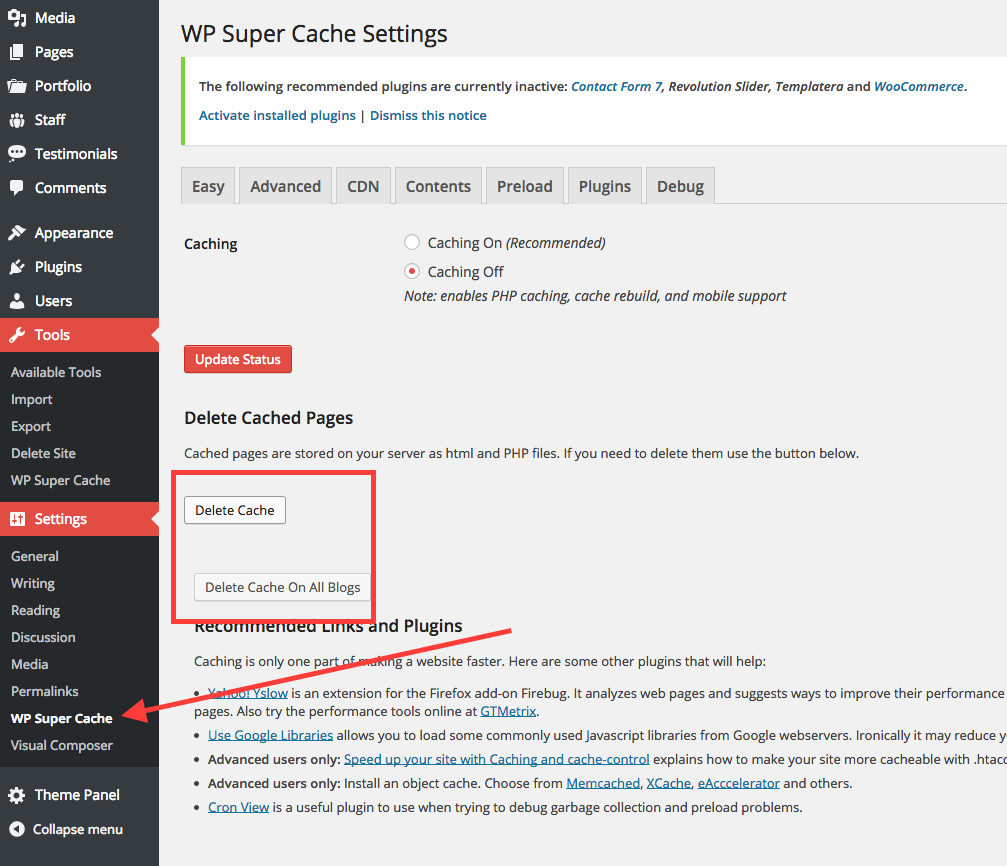
The browser sometimes bothers you and sometimes helps. At first, we choose the step for emptying browser cache. Move to settings and clear the caches. Again reopen the browser. If the site is faster than before, confirms no white screen of death issue.

2nd method: Check the admins and website

Verify if the white screen of death has effected the frontend and backend. The blank page cannot appear in the searching due to problems. Exceeding the memory limit and the website timeout confirms the white screen of death. Drop down to the next method.

3rd method: Test WP themes and plugins

Installed themes are missing means the white screen of death. Contact the developers to fix to download older one. For themes, upload theme’s files through SFTP. Rename the files from old to new .wp-config file. Otherwise, can install a proper new theme after deleting the older one.
For plugins, try to keep them in up to date.
Deactivate all plugins to locate the white screen of death. Activate one by one and see which is problematic. As like themes reinstallation or contact to developers can sort out the problem.

4th method: Restore new files to the original state

Somehow you have changed the coding before testing on the backend. The white screen of death will appear immediately. If the folder has saved in new .htaccess or wp-config.php, will trouble to fix up.
Go to WordPress.org to download the reorganized version.

5th method: Review other WP integrations

Conflicts can arise with the third-party tools such as CDN and SSL certificate. The good solution is to remove the potential offender.

6th method: Alter the server’s memory frontier and execution time

Sometimes WSOD won’t appear unless you activate a demo using a theme. Themes and template files won’t trouble. But the defect is in memory frontier and execution time. Increase time and memory limit with this link.

7th method: Reveal the PHP errors

Renew the wp-config.php in your control panel. If the file has a line that reads:
define( 'WP_DEBUG', false );

Amend from false to true.
If it is not present, add below line:
define( 'WP_DEBUG', true );

Save the changes in the core system.
Now the debug can reveal any problem if occur with PHP. Review for ensuring the white screen of death has gone or not.

8th method: Maintain communication with hosting company

Have you still failed to solve the white screen of death problem? Communicate with the hosting company.

Final Thought

You may also face this type of problem if you are using Elementor page builder. 
While using Elementor this issue might occur due to lack of memory. In this case, check if you meet the system requirements for Elementor. Get more help from this doc.
It is regular that a site can face the issued problems. The white screen of death may negatively impact on the website. But need not to tense or worry. Voidcoders can be your maintenance provider for 24/7.

An Overview of the Content Delivery Network (CDN) in 2018

Do you know any term which spans altered forms of content delivery services? Content Delivery Network (CDN) is the kind of term. It includes software downloads, videos streaming and transparent caching. Users in recent want to utilize a CDN. Why? When one of the cakewalk’s websites scrambles, means to test speed. CDN takes off loads from the server and speeds up the site’s contents to visitors.

Everything we deliver in Voidcoders, to make your site better. In that systematic way, today we are going to share our research on CDN. In this article, you will introduce yourself to CDN, how it works, CDN providers and speed test. In the end, you can boost your expectation from CDN speed test.

So let’s have an overview of CDN step by step.


Content Delivery Network (CDN)
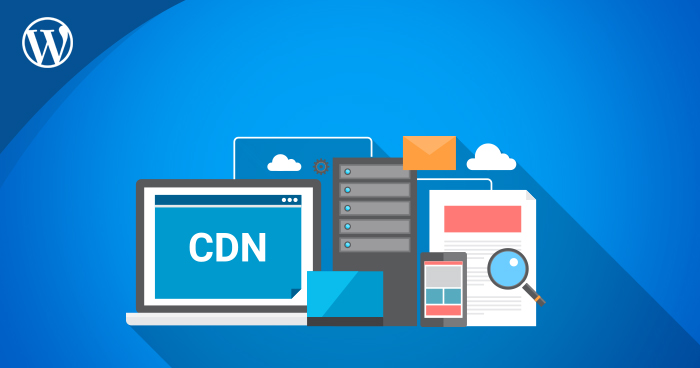
What is CDN? On starting, we have talked a little about it. Now, Voidcoders offers you a proper discussion.

CDN stands for Content Delivery Network. These are known as POPs (Points of Presence) also. These gather in hosting servers as a network located around the globe. Their forms have designed to cloud and copy the WordPress site stuff. Such dynamic content forms are CSS, JavaScript, images and video streams.

Also, the services which accelerate CDN on the top of the user’s choice list are:

  • Multi-CDN switching and analytics
  • Web and mobile content acceleration
  • Licensed or managed CDN
  • Load balancing
  • Cloud intelligence

With above in mind, users should know how do CDN provides services. Next level is for the beginners.


How Does It Work?

You should not be confused about CDN and your WP host server. One can not replace by another and both have variety in service. But how CDN works?

Suppose you have chosen Texas, USA. Thus your physical data center location is at Council Bluffs, Lowa. People are from Australia visit your site daily. But acute data loading time occurs due to a further distance. This latency problem involves the transmission of information over a network.

From a twitter statistics, 40% of visitors abandon a site for latency. The newbies must have overwhelmed of how CDN works.
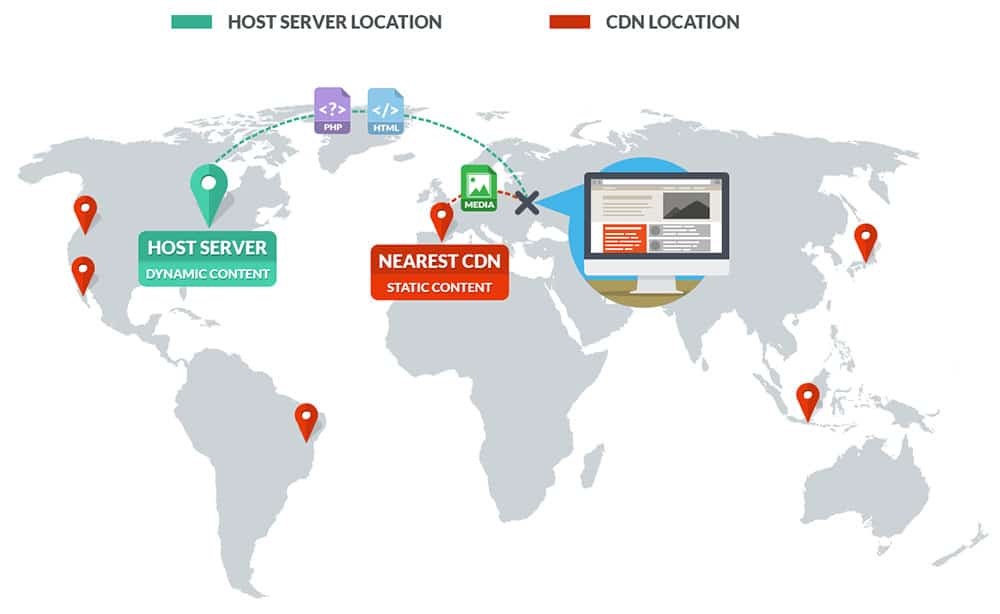
Don’t worry because it is easy to implement with the following steps:

1st step

  • CDN Enabler and WP Rocket are such free CDN integrate plugin. These plugins can connect your website assets to the CDN.
  • Take off your hands because an automatic system will link up your contents.

2nd step

  • Select a CDN provider like Cache Enabler Subscribe to their service.
  • With their calculator, calculate your data charges. Hope the little cost paid per month should not bother you much.

3rd step

  • After connecting your site with CDN, different CDN hosts are regulating your contents. Generally, two types of technologies route users. One of them is IP Anycast and is geolocation routing.
  • The automatic processor detects a user request’s location. After that routes to the nearest POP.

Choosing a strategic server for WordPress site is very important. Since a CDN helps to distribute media while website loading. For instance, Content Delivery Network named as Content Distribution Network.


The Popular Content Delivery Network Providers

Sometimes it is very confusing to select one CDN providers from the list. As like plugins, there are both free and paid CDN providers.

Pick out one from above third-party Content Delivery Network providers list.


How to Install CDN in WordPress?

CDN Enabler plugin is a lightweight plugin. Lookout the install process and configure it to link up your resources to Content Delivery Network.

  • Have a look at how to install plugins and themes.
  • At first, generate a pull area in the KeyCDN Dashboard.
  • Install the CDN Enabler plugin. Activate and press on settings.
  • Enter the CDN URL in the CDN Enabler Settings.
  • Save the settings. Ensure that your resources are charging from the CDN.

wordpress address sub folder


WordPress URL path

  • Now check CDN Enabler Setting>> Included Directories.


cdn enabler settings two

  • Purge CDN Cache from CDN Dashboard.


cdn enabler purge cdn

Will You Benefit with CDN?

It’s the most common question among customers. Even you also can ask that “why do I need CDN?”

Time and tide wait for none. If you want to progress in open source business, CDN is a must. Don’t only care about our words, here a quick stats for your concern.

  • 7% fall in conversions due to A-1 delay in contact response. [source: Kissmetrics]
  • Mobile responsiveness is vital in recent because 53% searches ensue through Google. [source: DoubleClick]
  • BBC has stated that they lose 10% users every second. When? In that case of lower speed in page loading. [Source: Creative Bloq]

Below approaches, a CDN can make to improve your website performance.


High Convenience and Scalability

Web traffic has routed due to replicate media and contents. CDN has built with high convenience and scalability. No need to worry about the small shared host. Content Delivery Network keeps your site safe from crashing down.


Speed an SEO Ranking

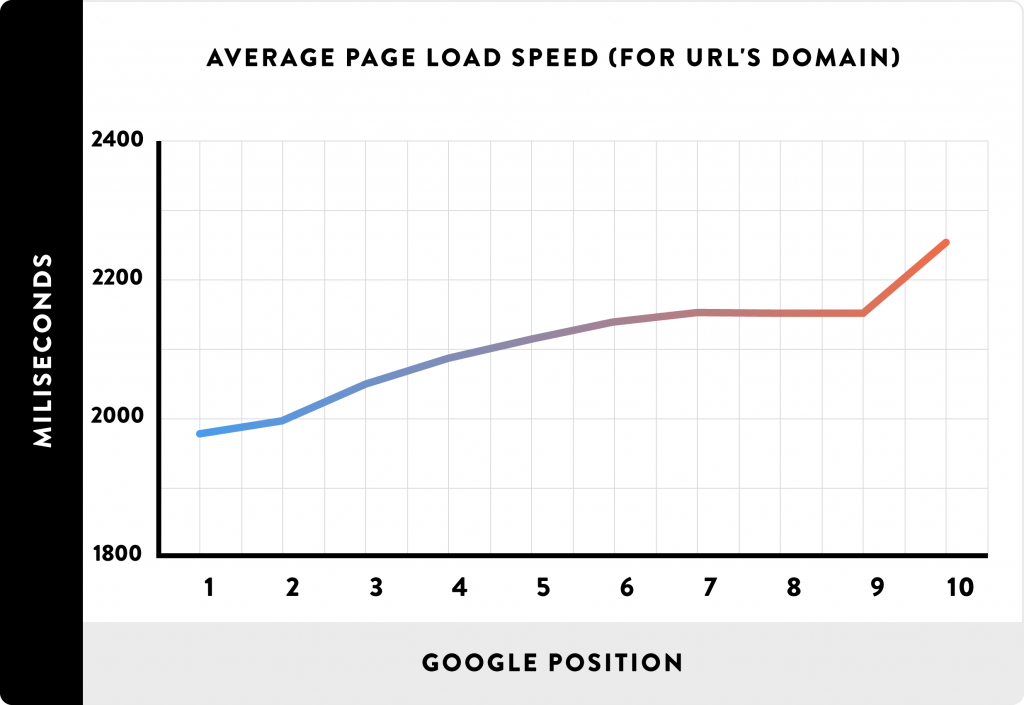
Site speed has become a ranking factor in Google. The more speedy your site, the more it ranks on search engine results. It is not a secret now that how much Google ranking and side speed are correlated. Hence, a CDN helps to increase the crawl rate through images to relate in Google Image Search.
Ensure Security

The origin shields or Web Application Firewall (WAF) are now pre-built in CDNs. Many CDN providers allow implementing WAF around sites. Sucuri is that kind of Web Application Firewall.
How will this help you? Let’s check out the answers.

  • Different protocols such as  SYN/ACK, UDP and ICMP and DNS Amplification might damage without a firewall. WAF mitigates DDoS attacks on those protocols.
  • Hide your Original IP Address.
  • Reduce bounce rate and increase traffic.
  • Provide secure tokens with an expiration link to access the content.

Bandwidth Saved


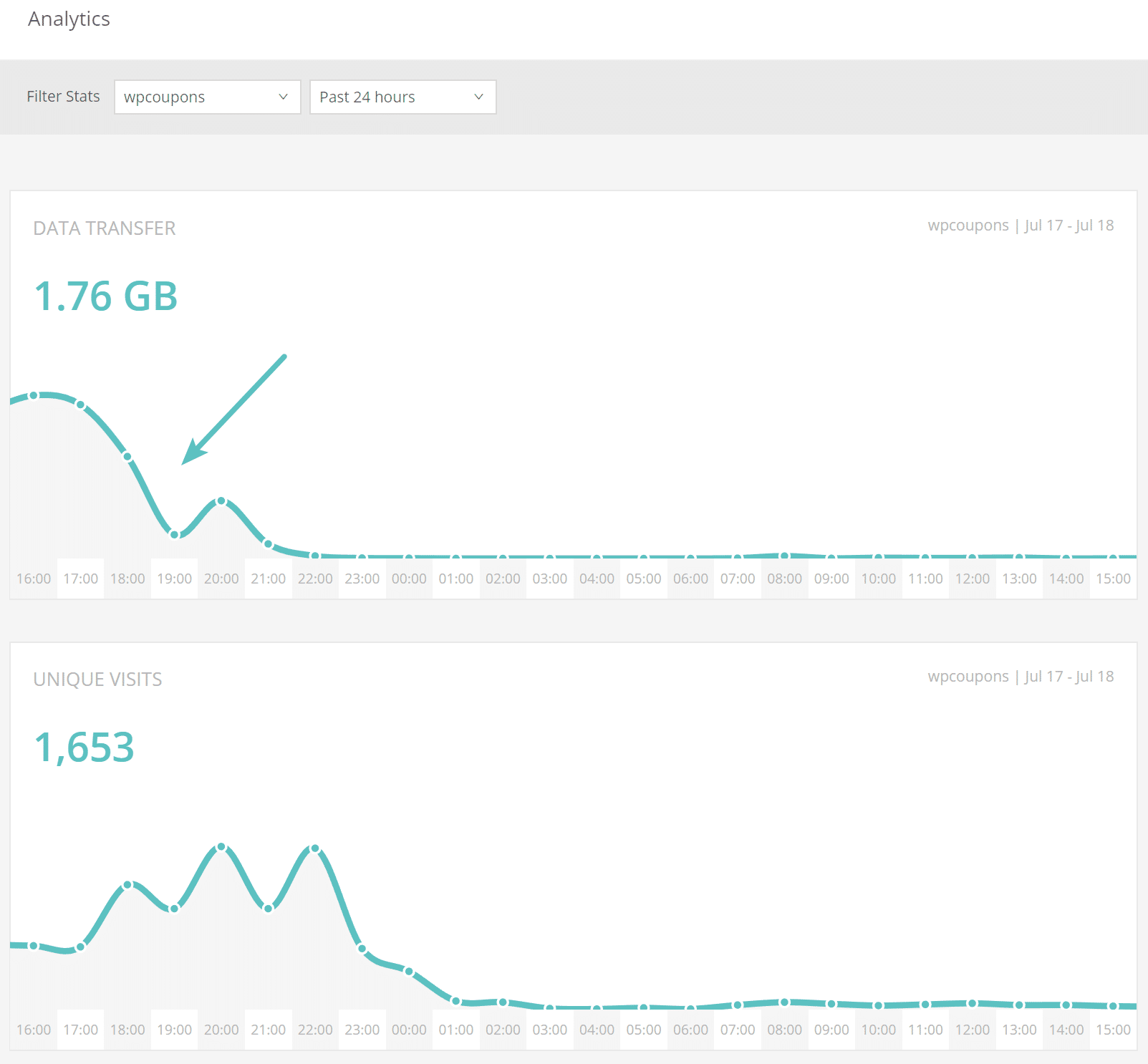
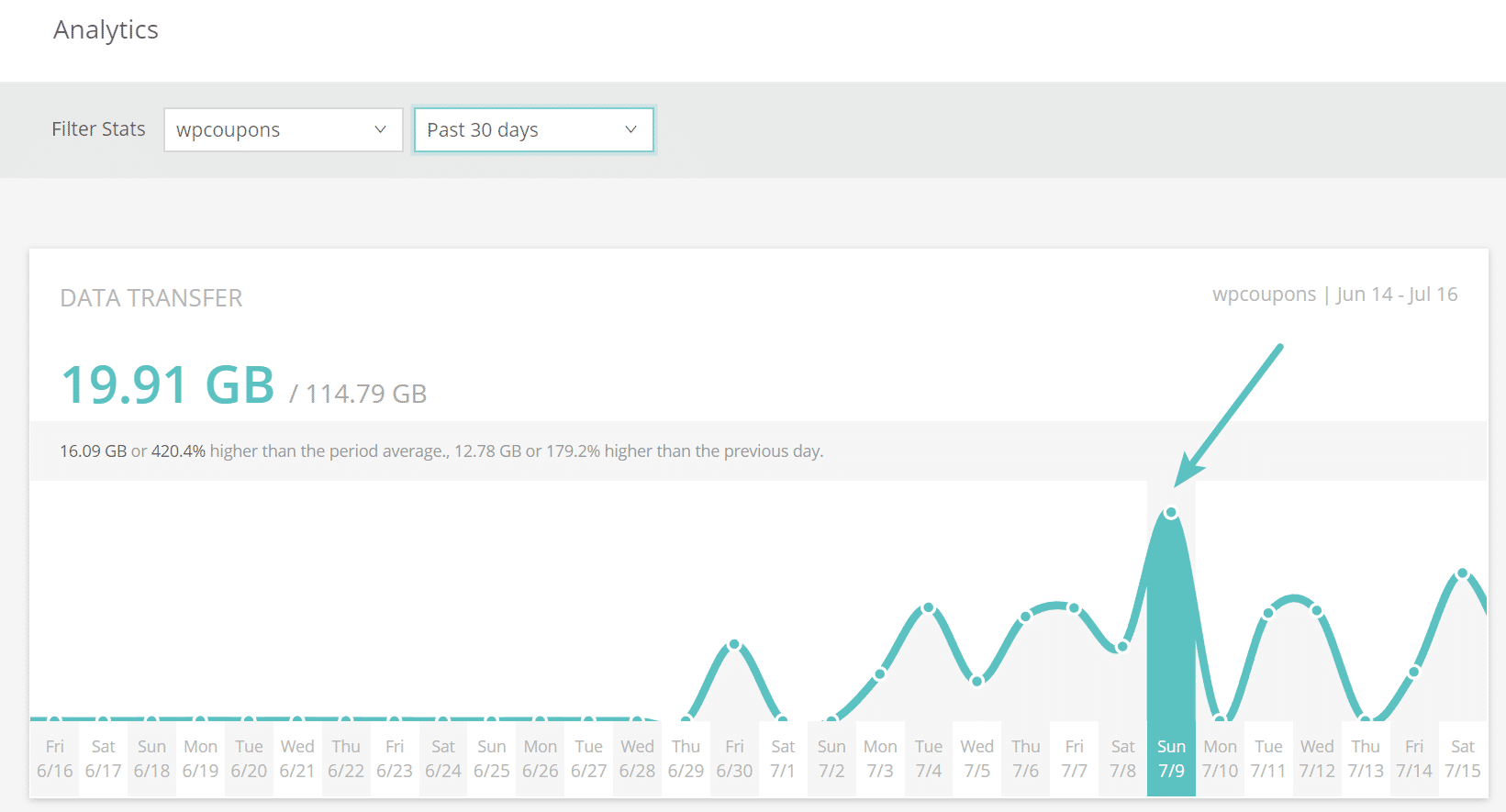
The most exciting thing in CDN is it offloads CPU and resources from your origin server. That saves your host from getting overwhelmed. How much will it benefit you have no idea. Content Delivery Network reduces bandwidth costs.

Suppose, Cloudflare is hosting a site. The offload percentage falls to 69% of the bandwidth appeals.


Boost Up Site Performance

One of the biggest reasons to choose CDN is this one. Users prefer CDNs because of they correlate servers with the higher conversion rate, high traffic and faster loading of the site. The enormous inclusion of those benefits boost up site performance. The following methods of CDN must help to improve your website.


When CDN doesn’t exist on a site, see what happen.
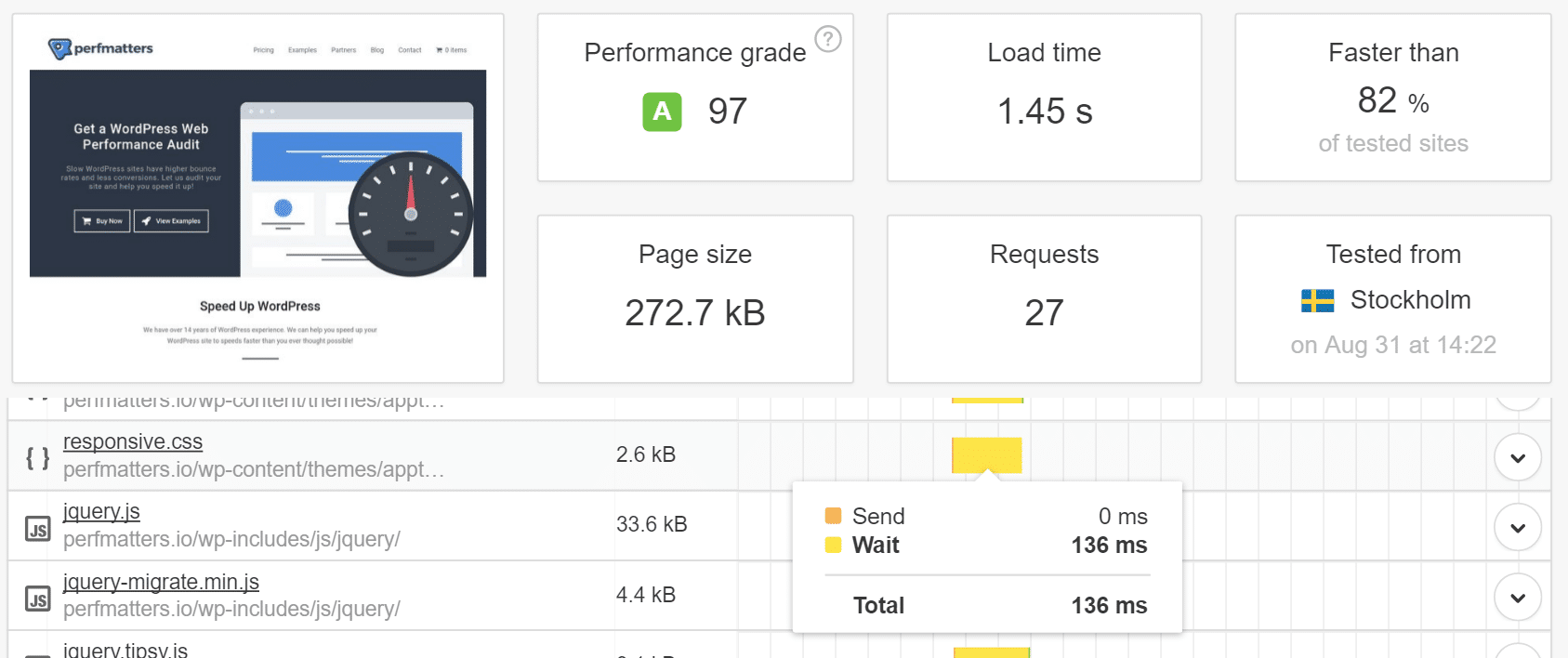
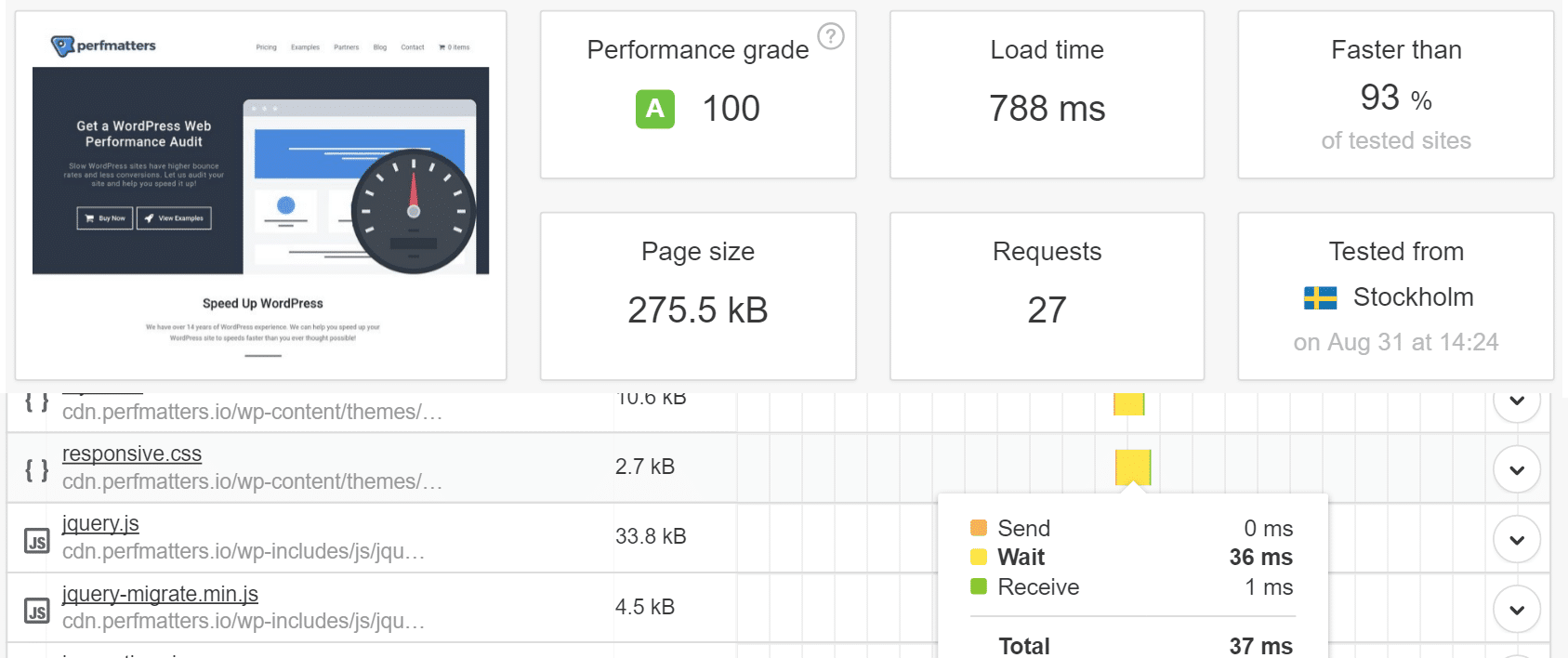
Again we have enabled a CDN and tested the site. This time the sum of loading time has dropped down to 788 ms. Also, the TTFB is now 37 ms! The whole test and CDN POP placed in Stockholm.
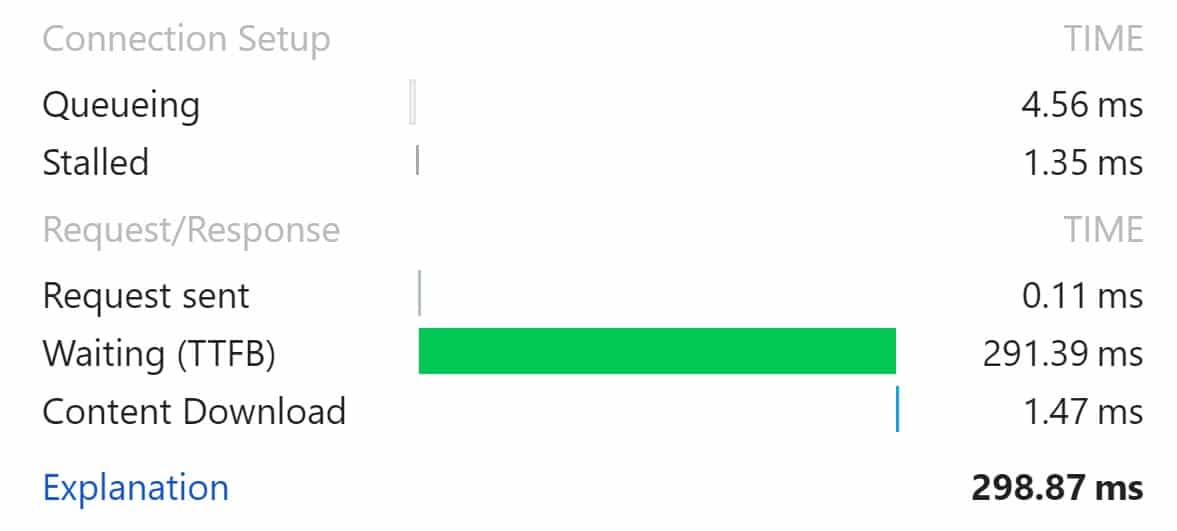
Cloudflare TTFB testing results in a bit higher TTFB. The additional overhead and being a proxy service running can effect as a lower to TTFB.
 

  • Reduces TTFB

We have already covered that how a CDN decrease latency. With above in mind, CDN measures TTFB in a good mood by the browser.


  • Enormous Savings with GZIP Compression
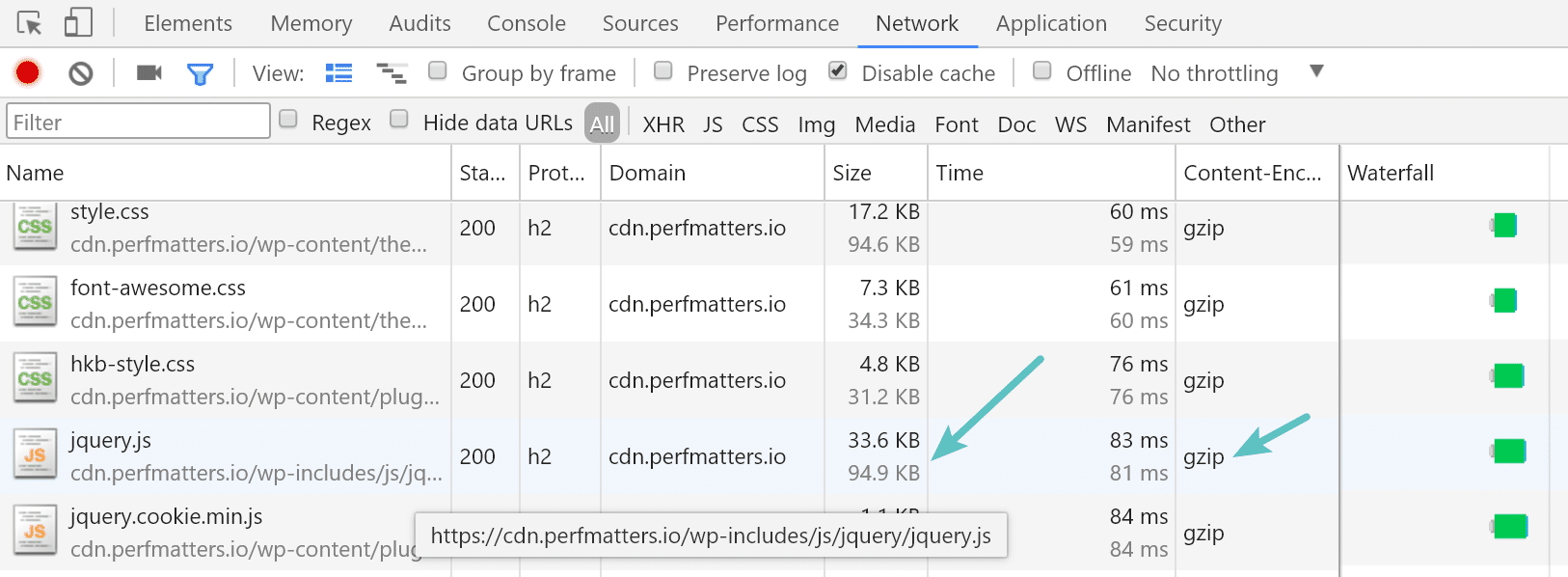
A software application uses for compression and decompression is GZIP. In short, GZIP is a file format includes HTML, JS and all files. WordPress CDNs correspondingly utilize GZIP. GZIP is a server-side app. A result said that 70% reductions due to compression of a file are possible. This impacts on saving 64.59% on just one folder. GZIP Compression is such a tool, compatible for all of your assets.


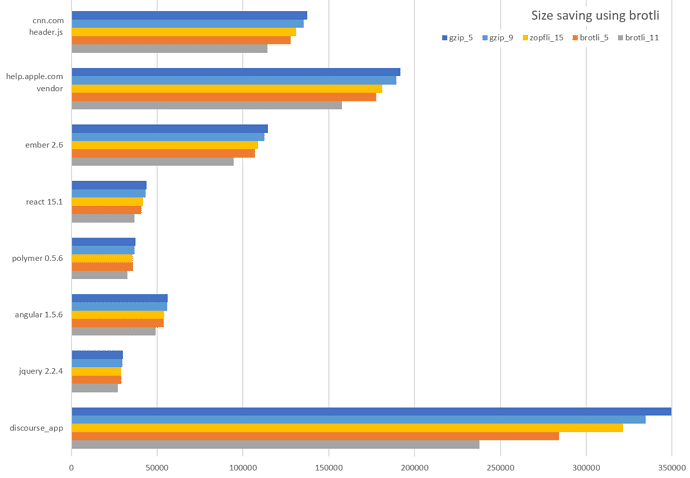
  • Brotli Accelerate Compression

Another compression algorithm which can reduce folders up to 26%. Brotli’s existed solutions include GZIP. Brotli has added a rapid growing adoption rate developed by Google. So guess what? Google is now advertising with Brotli’s compression display.
 

  • HTTP/2

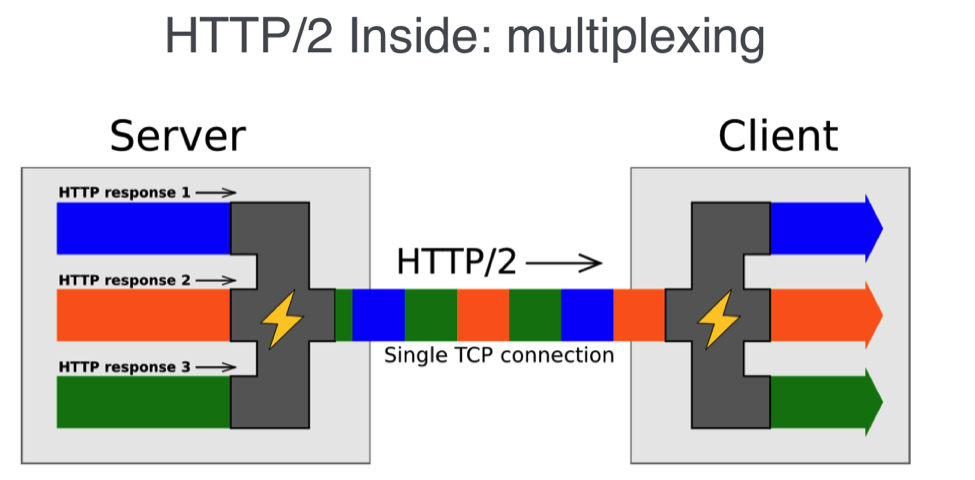
HTTP/2. The most popular and utilizing feature CDN has to speed up all assets. Merely, HTTP/2 needs only HTTPS for browser support. In any way, it has empowered CDN in various ways alike-

  • Better multiplexing
  • Parallelism
  • The ALPN extension
  • Server push and
  • HPACK compression with Huffman encoding


Want to Test CDN Speed?

Earlier on, we have discussed on CDN details. This time, instead of talk over CDN benefits, showing you some tests below. Each CDN has tested at the changed location by Pingdom.

Without CDN


San Jose, California, USA Dallas, Texas, USA Melbourne, Australia Stockholm, Sweden
Performance grade A 97 A 97 A 97 A 97
Load time 736 ms 518 ms 2.17 s 1.51 s
Faster than 93% 97% 67% 80%
Page size 346.9 KB 346.9 KB 346.9 KB 346.9 KB
Requests 31 31 31 31
Tested from San Jose, USA Dallas, USA Melbourne, Australia Stockholm, Sweden

(Source: Pingdom)


With CDN


San Jose, California, USA Dallas, Texas, USA Melbourne, Australia Stockholm, Sweden
Performance grade A 100 A 100 A 100 A 100
Load time 493 ms 476 ms 994 ms 684 ms
Faster than 97% 97% 89% 94%
Page size 350.6 KB 350.6 KB 350.6 KB 350.6 KB
Requests 31 31 31 31
Tested from San Jose Dallas Melbourne Stockholm

(Source: Pingdom)


CDN Test Results

The sum of each test results to understand how much CDN affects your WordPress site loading time.
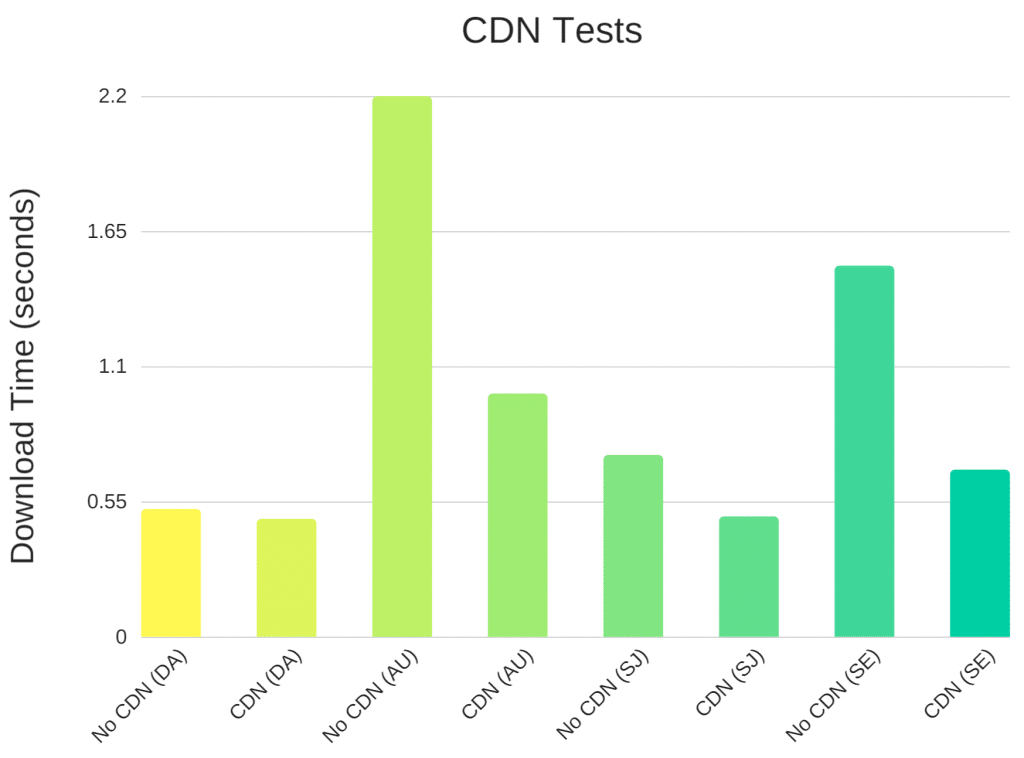
Isn’t it a requirement for your site to decrease loading times? Of course, yes.

Sum It Up

Hope you have enjoyed this article and almost craving to add this in WP site. WordPress CDN ensures to load your site media around the globe. You may have dramatic experience with its benefits. Best SEO plugins can help to a higher ranking. But WP Content Network Delivery ensure both higher ranking and fast page loading.

We are optimistic in your using of WordPress CDN. Don’t you want to share experiences with other customers? Of course, you do. So share your practices below the comment section.

Relax with Reducing the Processes of Bounce Rate on WordPress.

Relax with reducing the processes of bounce rate on WordPress.

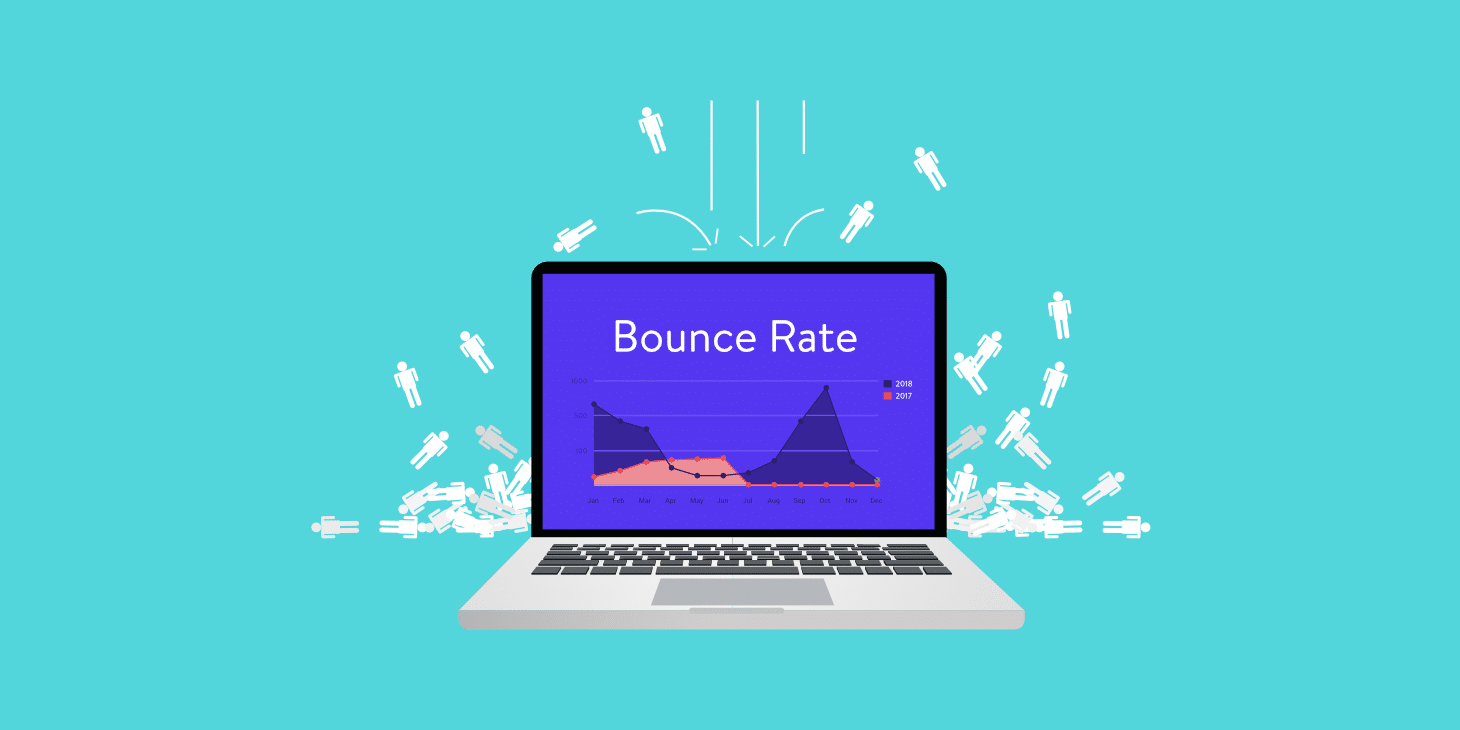
What is bounce rate? How could you find bounce rate on WordPress site? Can you fix bounce rate by yourself? For sure, others questions are keeking in your mind.

I have discussed before how to increase your SEO ranking. Like this, bounce rate is also an important search engine ranking factor for your website. By this, Google finds genuine in your site. High bounce rate can cause a lower position in search engine result. But this is not a wish for one’s site.

In this article, all factors of bounce rate will be discussed step by step.

BIG FACT – Bounce Rate

The bounce rate! Google specifies that it records in Google Analytics. When a user unlocks a single sheet, the immediate existed requested results come first. So the bounce rate exists in the single-page sessions.

The ugly truth is we can’t influence all the movements on our website. Remember, the higher bounce rate exists in blog posts when people scan contents. But CAOS is kind of plugin, that engage customers in the site with a time limit. Try it by tweaking your Google Analytics script.

Find Your Site Bounce Rate, But How?

Before knowing the strategies to reduce bounce rate, have to know the signs. Check a few places as it shows in Google Analytics.

  • Acquisition >> Source
  • Acquisition >> Channels
  • Acquisition >> AdWords >> Campaigns
  • Behavior >> All Pages

Top 10 Strategies to Reduce Bounce Rate

In this section, going to dive into the depth of the strategies. Hope the strategies are actionable to reduce bounce rate.

1.      Optimize Contents and Get Traffic

Optimizing your contents and traffic can reduce the bounce rate. As blog posts mainly hit it. Average visit duration and highest page views per visit can create great traffic. Capitalizing on the contents information also cause this. Google Analytics has traffic sources. Reach those sources and get them to share articles and collaborate with them. Publish the related article can grow visitors with the instance.

People care about business and blogs on WP. If so, they must escalate the quality of the traffic which in from SERPs. In short, take advantage of the info you have.

2.      Moderate Navigation Menu

The most important on your WP Dashboard is the Navigation Menu. This a fact to dominate or engage your readers. If they don’t find something needy in WordPress menu, will drive out themselves.

For example, Voidcoders has designed a navigation menu. Being an eCommerce site, it’s menu part convert customers to products with pricing page. Also, contains “Start A Project” and “Blog” pages.

3.      Make Content Fonts Viewable

Which driven out your readers most? Content fonts if so small while reading articles. Make your font size big. Try not to post articles beyond 18 px. Drop the code in the CSS division of the WP Customizer.

4.      Avoid Popups

Nowadays, popups have become a matter of dispute. It is both harmful and beneficial for one’s site. The caching plugins increase opt-in rates. David Risley of Blog Marketing Academy has risen its mailing list opt-in rate in this way.

On the contrary, it has some disadvantages too. Most users complain about the detraction. Popups occur much bounce rate as well as detracting from the user experience.

After weighing the advantages and disadvanteges of popups, Voidcoders has included one. It only displays after viewers scroll down 50% of the page.

5.      Fast Page Load Speed

Page load speed can reduce bounce rate as well as effect SEO ranking. Websites if take 3 seconds to load will satisfy 79% readers.

All you need-

6.      404 Error Page

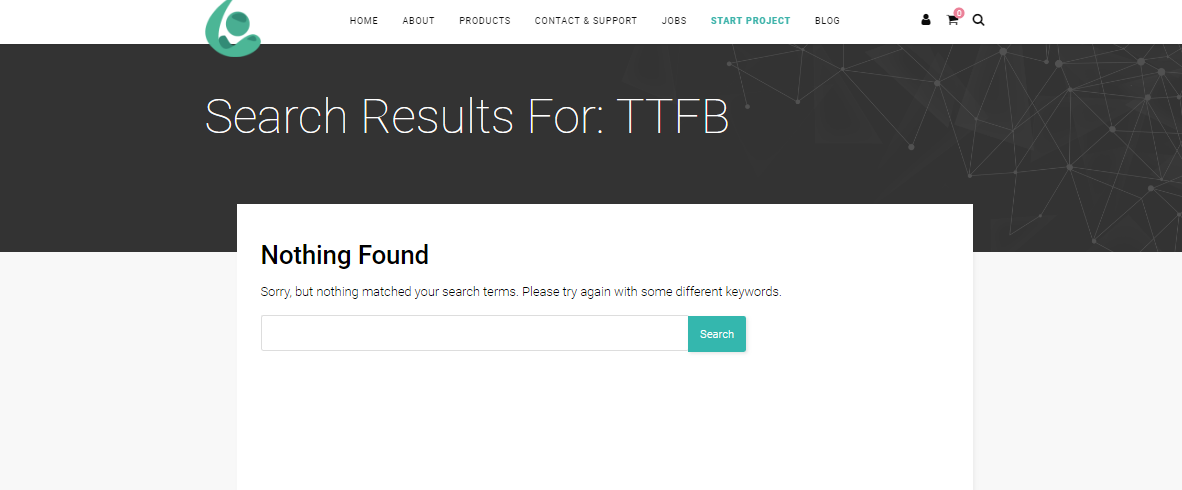
404 page only displays visitors an invalid link. That link covers nothing just a blank page. Themes are running on your site enlist contacts according to posts, authors and categories per month. The 404 Error Page provides sufficient information by preventing a bounce.

7.      Include Internal Links

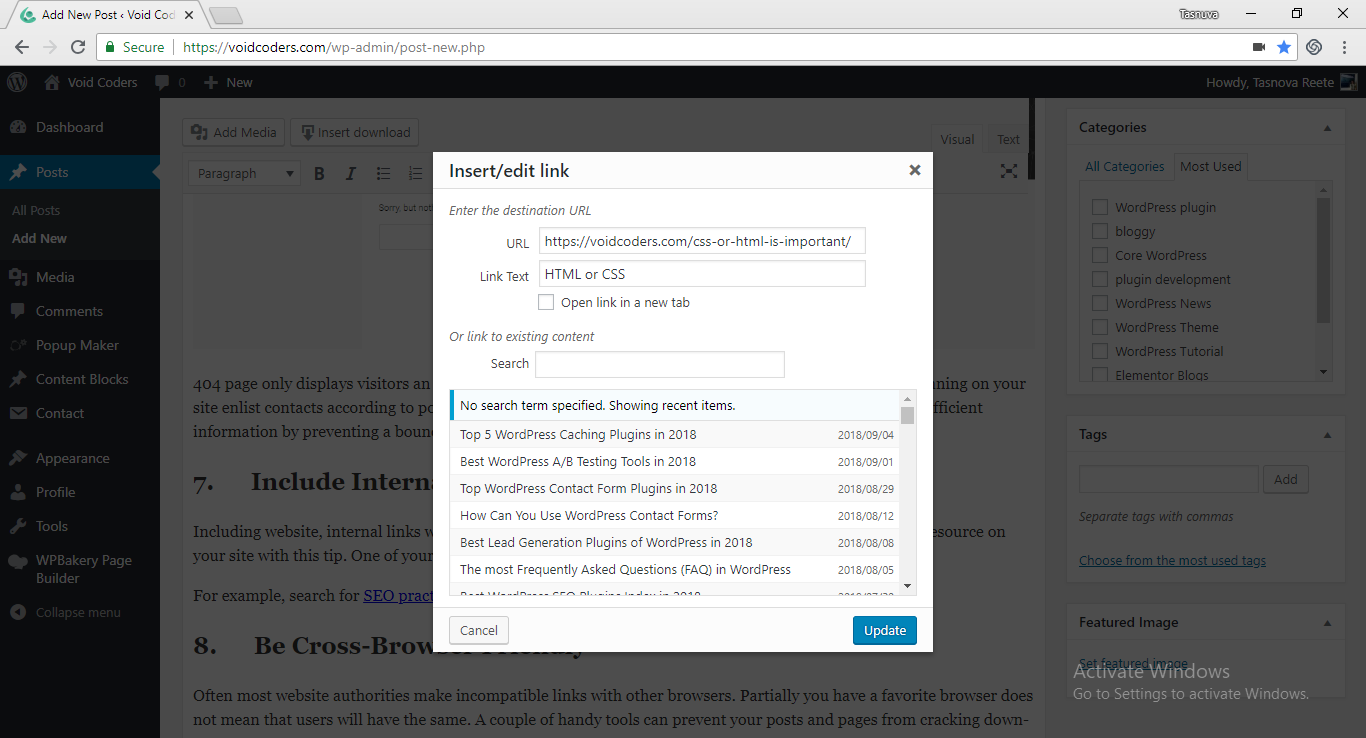
Including website, internal links will help to prevent a 404 page. Directly connect your users to another resource on your site with this tip. One of your blog posts can link up into other posts headline or phrase.

For example, search for SEO practice will link up into HTML or CSS post.

8.      Be Cross-Browser Friendly

Often most website authorities make incompatible links with other browsers. Partially you have a favorite browser does not mean that users will have the same. A couple of handy tools can prevent your posts and pages from cracking down-

“Audience> Technology> Browser & OS” will provide the number of visitors from another browsers. Please, don’t let die the old browsers with the newest ones.

9.      Mobile Optimization

Mobile optimization for all applications, WP tools has become most demanding. I have told before that half of traffic bouncing occurs due to wrong navigation. So the web developers compatible the themes and plugins with mobile-responsive.

I recommend doing tasks with responsive tools. Go through your tasks with mobile and tablet reactive rather than other devices fast and automatically.

10. Insert Attributed Images

Inserting attributed images significant as well as structuring an article wisely. Pictures speak thousands of words rather than elaborating content. Insert proper pictures instead of boring audiences with 2000 or 3000 words. Inspire with post related images and videos will engage your visitors, perhaps will increase their numbers.

Wrap It UP

Content, images and videos whatever you do to increase the number of subscribers. The best practice for SEO is to diminish bounce rate and take it to higher SEO ranking. Don’t distract customers if you want to give bounce rate goodbye.

In the above, have blabbered a lot. But now it’s your turn to follow the strategies. Say GOODBYE to bounce rate and come first in the search engine result.

If you make a huge difference and develop than before, share with us.

ERR_TOO_MANY_REDIRECTS! Diagnose and Get Cures.

ERR_TOO_MANY_REDIRECTS is the redirect loop occurs in site. On a regular basis, ERR_TOO_MANY_REDIRECTS happen while a misconfiguration occurs in your server. Also in your WordPress site. The third-party services can also charge users.
In Google Chrome, ERR_TOO_MANY_REDIRECTS seems as “This page isn’t working .domain.com redirected too many times.” Again in Mozilla Firefox, it shows “The page isn’t redirecting properly”. Also in Microsoft Edge, “Hmmm, can’t reach this page” screens on. This ERR_TOO_MANY_REDIRECTS is not helpful at all. Today we have appeared with some recommendations on how to get your site back and track it.

What ERR_TOO_MANY_REDIRECTS means to you?

Sometimes your site can move into an infinite redirection loop. But what are the reasons? Any guess?
The domain can redirect the user too many times as like from URL 1 to URL 2. Again from URL 2 to URL 1 when the site got stuck. Unlike some other errors, the redirecting errors can resolve themselves. But it depends on the user’s taken actions. In the above, we have discussed little variations of ERR_TOO_MANY_REDIRECTS in browsers. We are jumping on the recommendations to check errors and fix up.

The DO’s for stopping ERR_TOO_MANY_REDIRECTS

Your WordPress site is redirecting URLs too many times. What should you do now? You can’t stop working on site but taking necessary steps to stop ERR_TOO_MANY_REDIRECTS. Here we have suggestions.

Clear all server, browser, proxy and site cache

  • Can’t access the WordPress admin dashboard? Clear the server cache if your hosting site has own control panel.

  • Open up the browser in New Incognito Window instead of clearing cache. Either use another browser for searching results.

  • Cloudflare and Sucuri are such types of caching plugins. Use these caching toolkits to purge everything.

Delete cookies

Why delete cookies? Cookies contain more faulty data and cause ERR_TOO_MANY_REDIRECTS. Google and Mozilla Firefox offer “Try clearing your cookies” to avoid errors. The advantage of this method is this will not effect on your website for frequent visitors.
How can you delete cookies in Google Chrome?
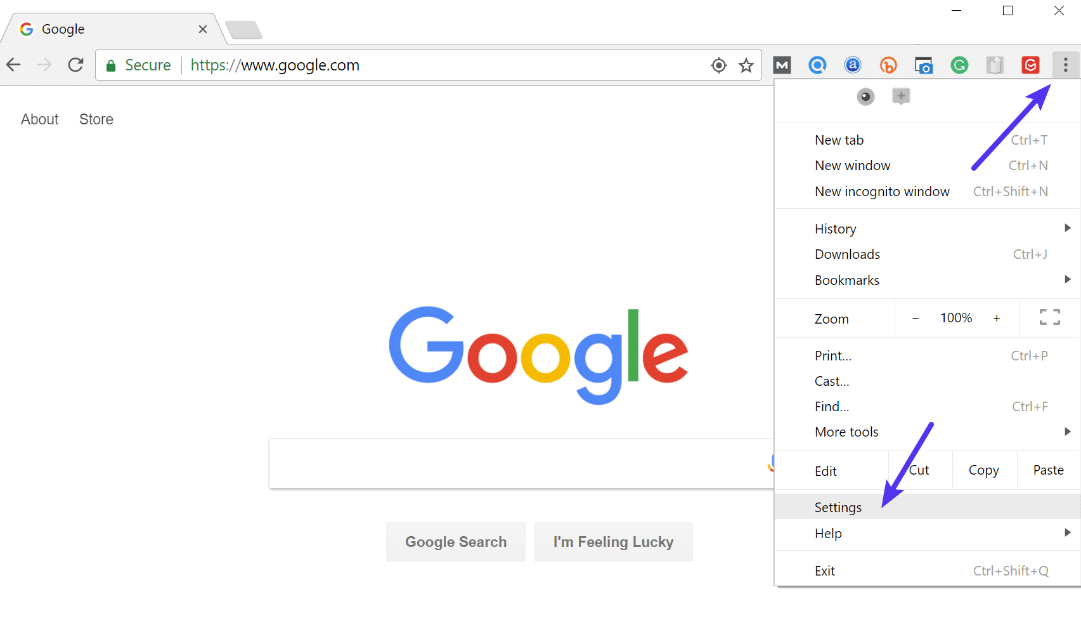
  • Go to Google Chrome. Click on the right-hand corner dot sign.

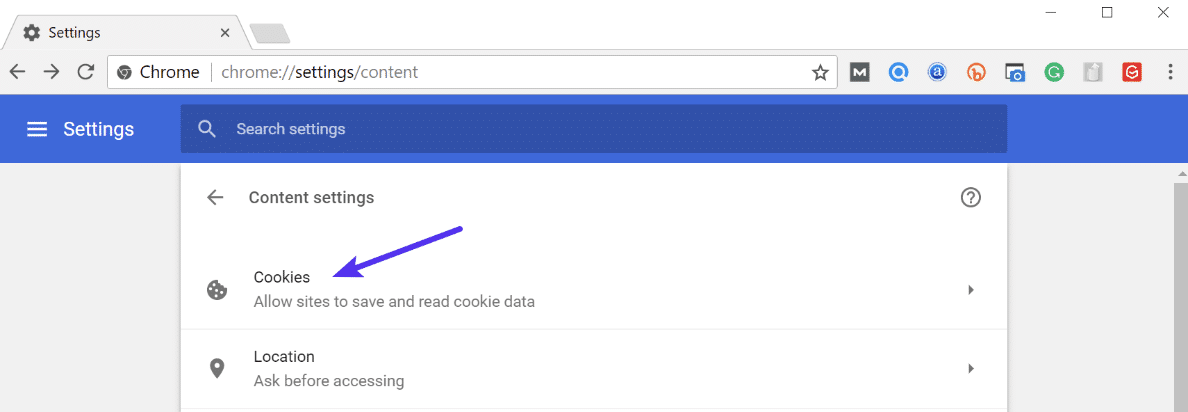
  • Again click on Settings> Advanced> Content Settings> Cookies.

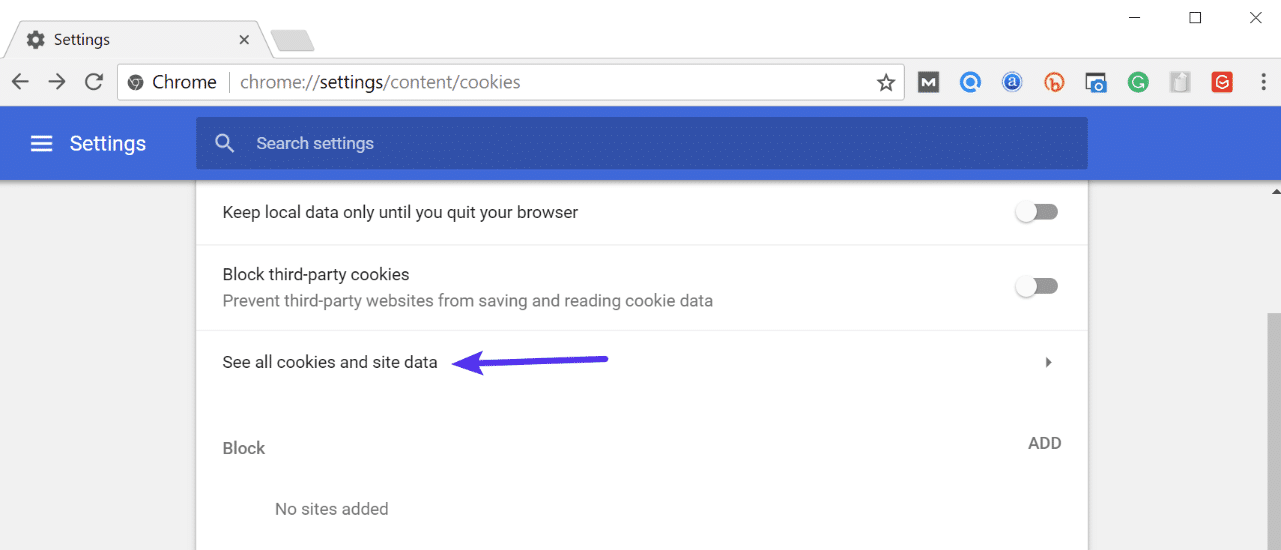
  • Press on See all cookies and site data.

  • You can now delete cookies that still save in your website domain.

Check redirects

Any error like 404 or 301 redirects can take your site down. So observe the HTTP to HTTPS forwards in your server. Server’s configuration files may affect in ERR_TOO_MANY_REDIRECTS.
In Apache .htaccess file may in a redirect loop if there is a wrong rule in it. Recreate a fresh one from scratch as like in fix 500 internal server error.
The following defaults are also useful:
# BEGIN WordPress
<IfModule mod_rewrite.c>
RewriteEngine On
RewriteBase /
RewriteRule ^index\.php$ - [L]
RewriteCond %{REQUEST_FILENAME} !-f
RewriteCond %{REQUEST_FILENAME} !-d
RewriteRule . /index.php [L]
</IfModule>
# END WordPress


Recheck site HTTPS settings

The user can fix an error by rechecking site HTTPS settings. We have told that a wrong set up in settings can cost you much. Before migrating WordPress site to HTTPS, should remember and do the followings:
  • Install an SSL certificate. Qualys is an SSL certified lab where you find SSL tools.

  • “Really Simple SSL” is a free SSL plugin. Yet, using this method can create security problems. You should update your site HTTP links.
  • NGINX is a proxy server along with HTTP cache and load balancing feature. This one helps you to drive HTTP traffic to HTTPS. If the site is running through Apache web server, add the ensuing code to the .htaccess file:
RewriteEngine On
RewriteCond %{HTTPS} off
RewriteRule ^(.*)$ https://%{HTTP_HOST}%{REQUEST_URI} [L,R=301]


Ensure the third-party service

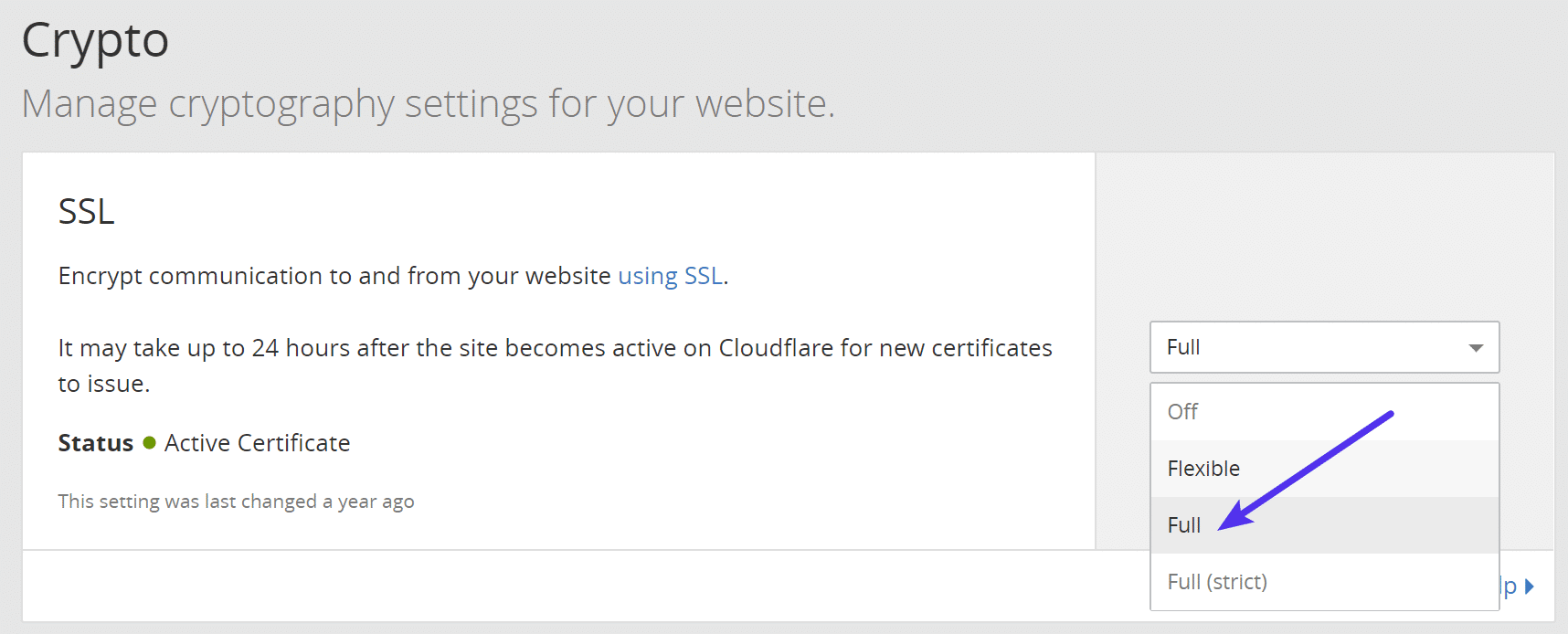
The reverse proxy services cause of ERR_TOO_MANY_REDIRECTS. When the site server is flexible, all requests redirect to over HTTPS from HTTP. Change the Crypto Settings to full strict option.
N.B. : For avoiding a redirect loop, use HTTPS page rule.

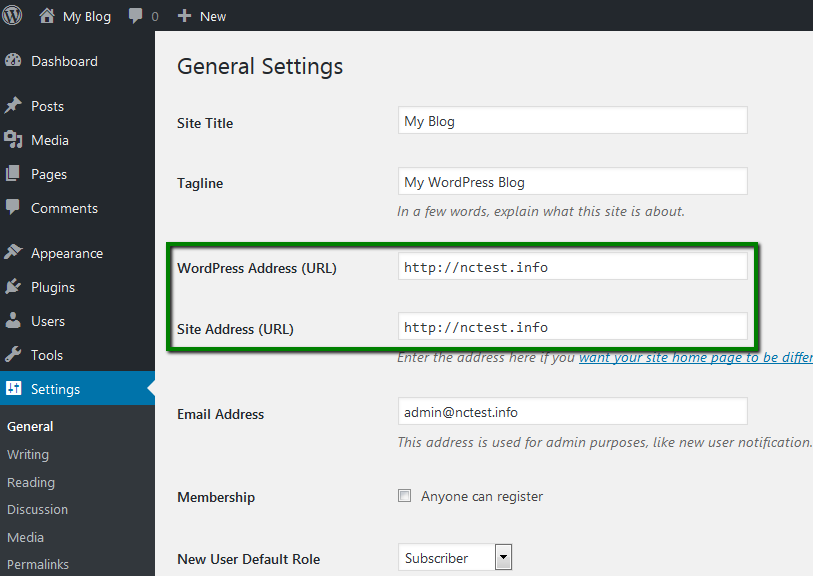
Form WordPress site settings

Two different fields in WordPress site settings should ensure by users. Correct prefix to match the rest of your site.
WordPress address URL: This address is to rich your blog by visitors.
Site address URL: WordPress core files are heading here.
Change the values to replicate your domain through the following coding style:
define('WP_HOME','https://yourdomain.com');
define('WP_SITEURL','https://yourdomain.com');


Regulate nature of redirect loop

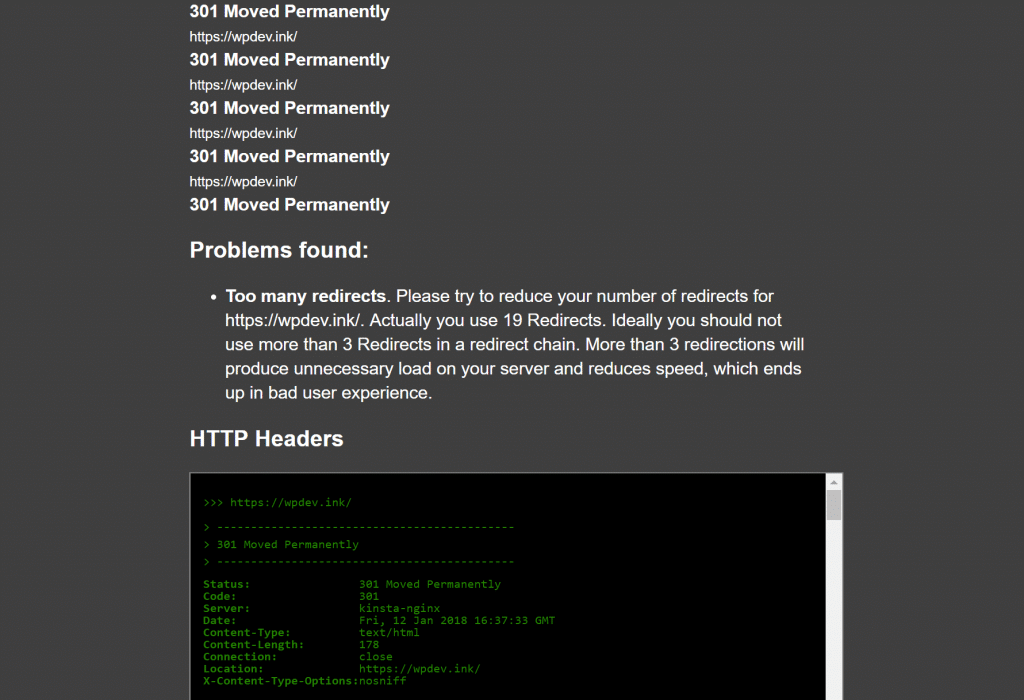
Some be further analysis user could do via cURL in case the clearing cache method won’t work. 301 can appear as a bulky chain of redirects.
The Redirect Path Chrome extension provides insights all the reproduction in your site.

Wrap Up

The above troubleshooting steps can avoid ERR_TOO_MANY_REDIRECTS. You can resolve this problem through disabling plugin for temporary. Hope you can understand that how much easy to resolve. Later it’s very much tricky to track down. After solving it, your site should act faster than before. So resolve and run your website quite in a better way.
Feel free to remind us of the missing things in the comment section if we did.

Internal Server Error Analysis 1: Fix 500 Internal Server

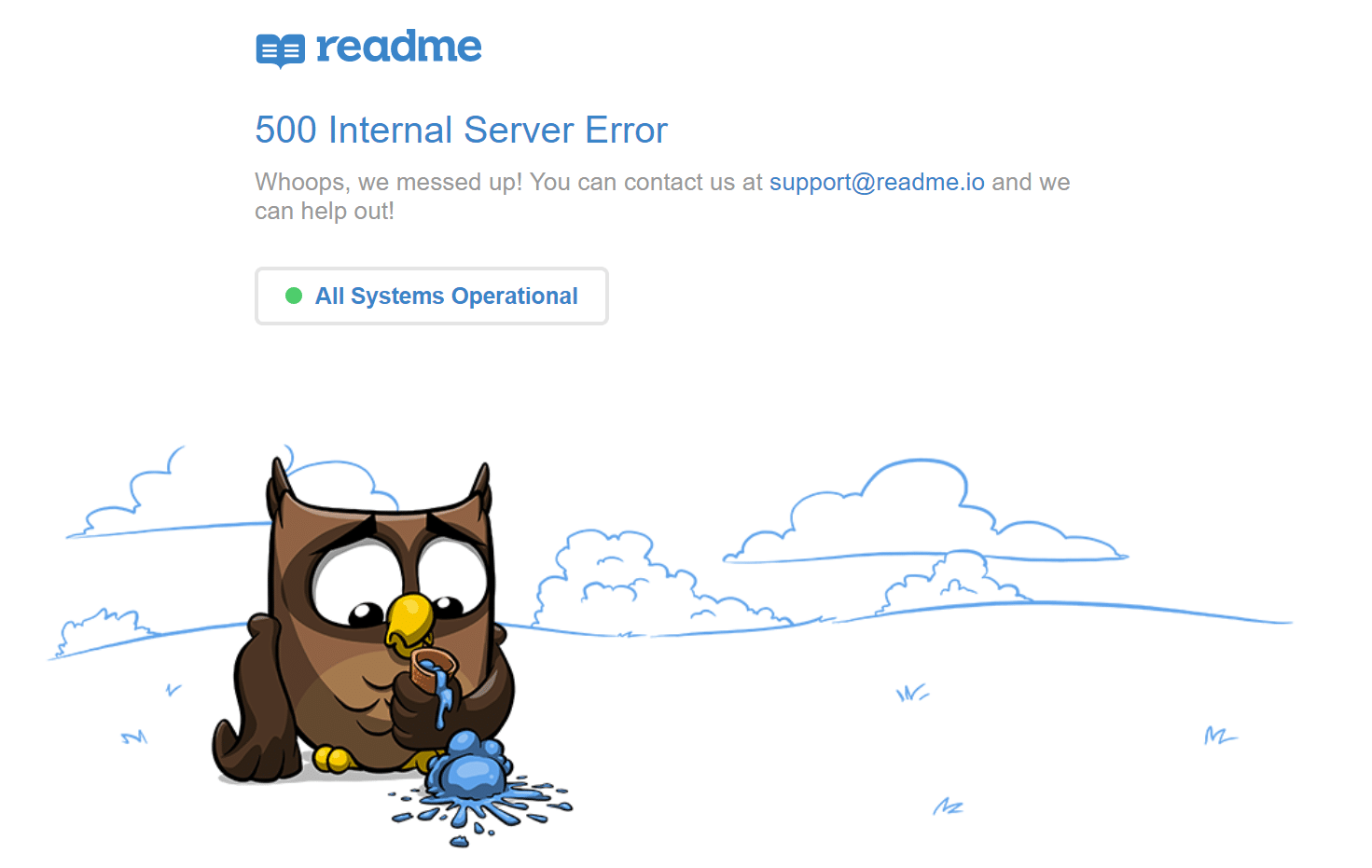
500 internal server error, the dreaded one. This internal server error often lets to figure out your WordPress site back. Losing customers and visitors is a bad thing. This type of incident can occur by 404 and 500 errors. These even create errors in establishing any data connections. All of these behave similarly to fall down your branding in eCommerce and digital marketing.

You may face 500 internal server error issue while using Elementor Page Builder! This post is going to help you with that as well.

In the last article, we have discussed 404 error and the paths to fix it. 500 internal server error is our today’s topic. If you walk through this article, you can find some ways to get your WordPress site back!

500 Internal Server Error!

How can you find and visit a website? Well, your browser sends a request to the server. The exact server which is hosting the site, accept the request. It sends back with the HTTP header with requested resources like PHP, CSS and HTML. An HTTP header also takes HTTP status code. This code is the only way to notify customers about the search engine result. If it is 200 status code, means “Everything is Okay”. But in the case of 500, means something is really wrong with the result. But the site owners are dealing with such similar types of errors. We have published on how to transform 404 error page into a useful one. Several 500 internal server error faces will display on devices. Let’s have an introduction with the different 500 internal server errors. Read RFC 7231, section 6.6.1 for more about 500 internal server error.

Several 500 Internal Server Error

  • HTTP 500
  • Internal Server Error

_______________________________________________________________________

  • 500 Error
  • 500 Internal Server Error

  • A blank white screen
  • The website can’t display the page – HTTP 500

Due to operating systems, web servers and browsers, a 500 internal server error happens. But you shouldn’t worry. Voidcoders is 24/7 in your support.

How to Fix It?

Before fixing it, need to know where you shoot trouble? Typically 500 error can originate from two things. Firstly from user error and secondly from server error. Check out below to figure out these common problems solutions.

1.      Check Server Logs

Take advantage of your site’s error logs. Every hosting site has a logging tool to check server logs. The records located in WP content-directory. In case they don’t have, add the following code to WordPress config.php file.

define( 'WP_DEBUG', true );
define( 'WP_DEBUG_LOG', true );
define( 'WP_DEBUG_DISPLAY', false );


NGINX and Apache are kinds of analytical tools that can provide supports to regulate log files.

  • NGINX: /var/log/nginx/error.log
  • Apache: /var/log/apache2/error.log

2.      Clear Browser’s Cache

Browser cache sometimes makes troubles and jam-packed in next search engine results. Such browsers are Google Chrome, Safari, Mozilla Firefox and so on. So clearing browser’s cache can remove debugging on your site.

3.      Try Reloading Browser Page

The little obvious try is to reload browser page. Sometimes the host remains overloaded. It happens after installing plugins and themes. Then people experience a temporary timeout problem. Why are you waiting? Refresh that page or use a new one to rule out that issue.

4.      Monitor Plugins and Themes

From #3, you know that third-party plugins and themes overload server. Thus it causes a 500 internal server error. Run your plugins updates one by one and utilize a staging environment. Also, can troubleshoot the 500 internal server error by deactivating all plugins. Didn’t you find the deactivating option? Switch to Dashboard >> Plugins >> Bulk Actions.

Again activate the plugins one by another. Watch which one is a misbehaving one. After the whole thing, face problem while accessing in the admin area? Then use FTP method to the server and rename plugins folder.

5.    Intensify PHP Memory Limit

Have you checked your PHP memory limit? Exhausting PHP memory can generate a 500 error. Let’s see how to change the limits in Apache, cPanel and php.ini file.

Intensify in Apache: The .htaccess file is a hidden file that contains several settings. The settings used for modifying the server behavior.

  • At first use FTP or SSH to log in to your site
  • Take a look at the directory and find out .htaccess file

  • Change the PHP memory limit by including necessary code in the file


php_value memory_limit 128M


Intensify in cPanel: Check if your running host uses cPanel or not. If uses then follow the instructions:

  • From your UI choose a software. Press on “Select PHP Version”

  • Press on “Switch to PHP Options”

  • Click on memory limit attribute and change the value. Save the new UI configuration.


Intensify in php.ini file: If the above two methods don’t work, use this one. Again login to your site via SSH or FTP. Then,

  • Open and create a php.ini file in the WP directory

  • Search for the settings if you want to modify
  • Some share hosts demand that you add a suPHP directive in your .htaccess file. This modification is necessary to work through the above file settings. Include this following code just before the top of the folder.
<IfModule mod_suphp.c> 
suPHP_ConfigPath /home/yourusername/public_html
</IfModule>


  • If the global settings have locked down, nothing to utilize. Again do the login process and generate a user.ini file. Once more, add this code:


memory_limit = 128M


6.    How is Your .htaccess File?

Generally hosts running Apache, the server may corrupt. Follow the steps to recreate a new .htaccess file.

  • Once more use the genuine login process
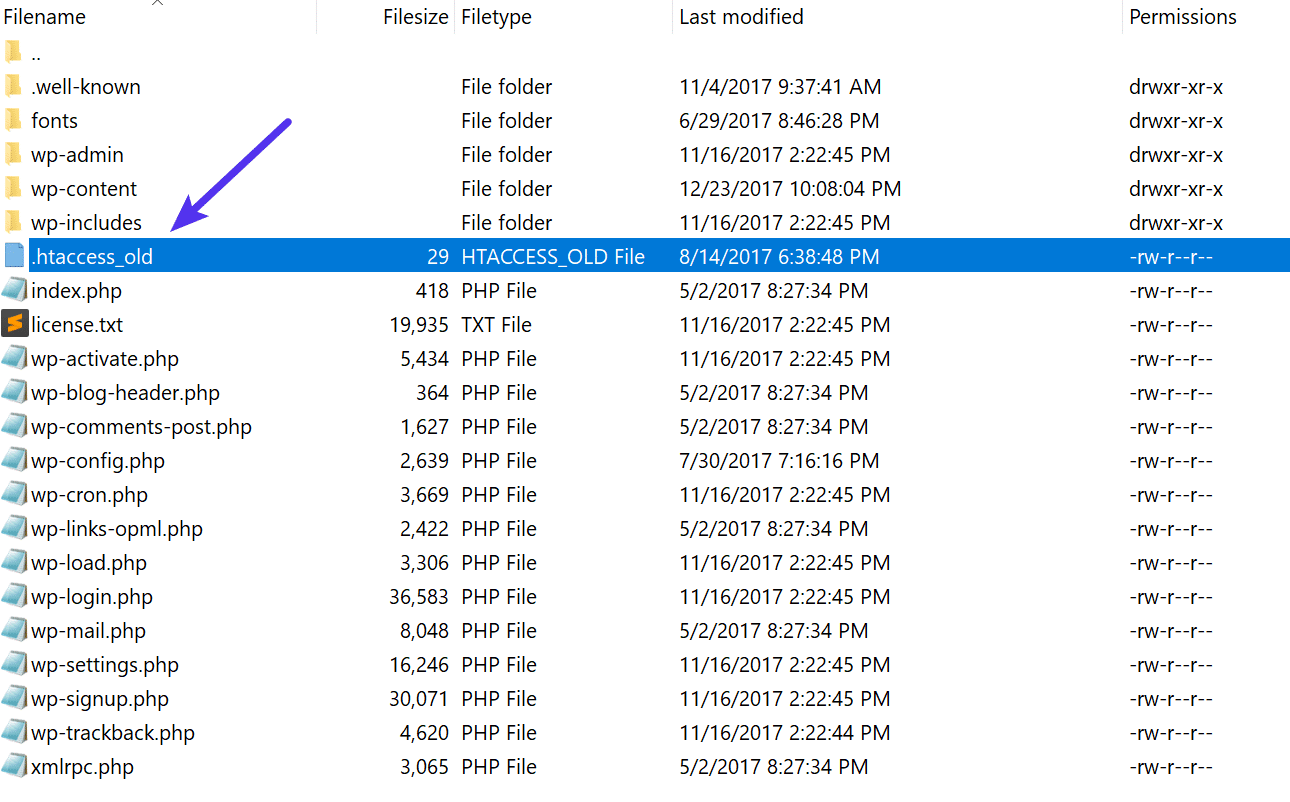
  • Rename the old .htaccess file to old .htaccess file

  • Re-save your permalinks on WordPress. But the 500 error will not let you.
  • Input the following contents into a new .htaccess file. Upload it to the server.
# BEGIN WordPress
<IfModule mod_rewrite.c>
RewriteEngine On
RewriteBase /
RewriteRule ^index\.php$ - [L]
RewriteCond %{REQUEST_FILENAME} !-f
RewriteCond %{REQUEST_FILENAME} !-d
RewriteRule . /index.php [L]
</IfModule>
# END WordPress


7.    Syntax Complications in CGI / Perl Script

CGI and Perl are less common than it used to be. But it is still worth mentioning. The cPanel users face such 500 errors while using it in UI.

Tips to handle CGI script:

  • Plain text editors such as Sublime and Atom ensures the editing in ASCII format.
  • Perl modules must be installed and supportive
  • Upload CGI scripts through FTP editor in ASCII mode. The characters will send to CGI-bin directory.
  • CGI scripts will start after having correct permissions from chmod Ensure it.


8.      Regularly Check Your Hosting Server

With above in mind, hope users can understand the importance of regular check hosting server. This issue is not negligible. The PHP timing out and fatal errors you can check along with WordPress host. Sometimes you need web developers to identify and solve them. A lack of PHP workers typically causes 500, 502 and 504 internal server errors.

A tool named updown.io to monitor your hosting server automatically. Merely, use your homepage.

500 Internal Server Error while using Elementor

Are you getting a 500 error while using Elementor?
Then you will need to check the error logs of your server to see the issue.

Most of the time, this error message occurs due to memory limit issue.  Elementor requires  the memory limit to be at least 128MB.

There are some other reasons of this issue that can’t be said exactly without error log. To troubleshoot, you can follow the steps given below-

  1. Deactivate your plugins (Elementor and Elementor Pro & all others)
  2. Switch to a default WordPress Theme (i.e. Twenty Seventeen) to find out if it is a theme conflict or not.

Now if you don’t know how to produce PHP error logs please send this guide to your hosting company:

https://codex.wordpress.org/Debugging_in_WordPress

Need direct assistance from Elementor support?  Here you go!

500 Internal Server Error Impacts on SEO

Unlike the 404 error, 500 internal server error has a negative impact on SEO. WordPress maintenance mode gets trouble for 500 error. Google search engine gets crawled for your site. For instance, crawlers catch the page to deliver from the cache. In this case, Google will not take the chance to re-crawl it before back up. That means your site is eligible to select at first page on Google result.

Even though, your site page may break down 2 or more hours. Google will address and show it as a 500 internal server error. The site level issue user should figure out. The above tips can help users.

Sum It Up

500 internal server error even though frustrates in some way. But this can improve your knowledge while fixing it up. Users require web developer’s support once in a way as the problems are not such simple. The typical reasons for 500 error are third-party plugins, PHP memory limitation, fatal PHP errors, PHP timeouts and database connection issues.

Perhaps, you may have other tips to provide us. Please share your solutions in the comment box below.

How to Manage Your Entire Layout by Navigator?

It was time for a standard live page builder. The Elementor has done with it. In a successive mood, Elementor has released their last series named as Elementor V2.2. For instance, this version has released with new, updated and significant configuration. The user can get all the listed features of Elementor 2.2 in Introducing Elementor 2.2: Visual Page Building Reinvented.

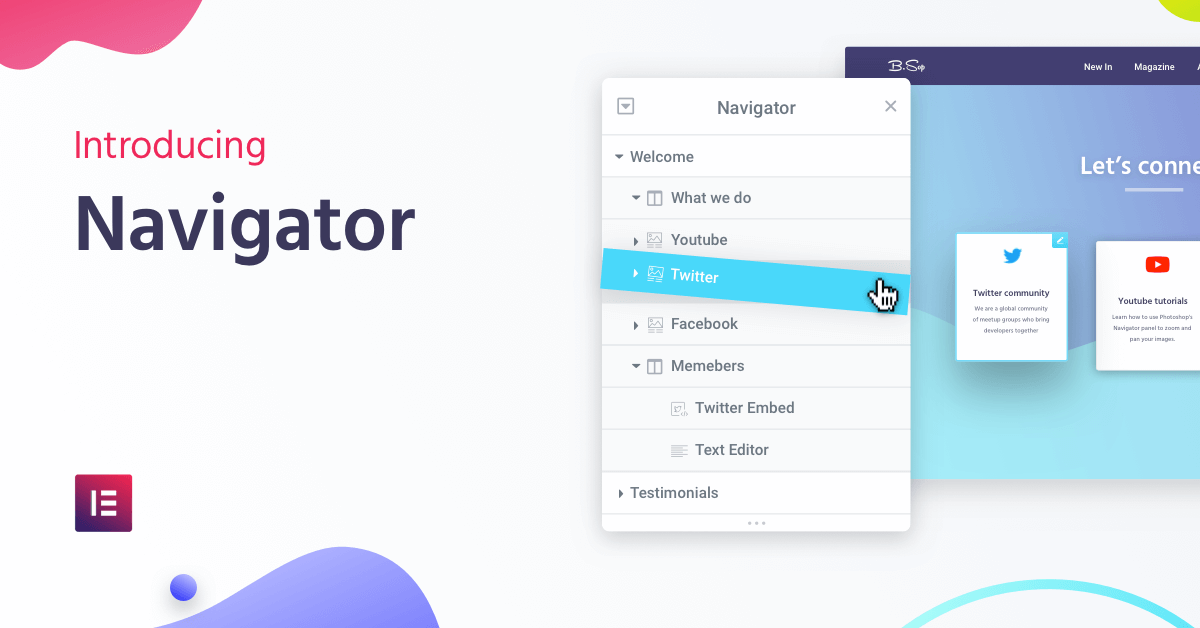
Our today’s aim is to introduce you to the newest feature navigator in Elementor. Check out this 5 minutes article.

Introducing Navigator in Elementor V2.2


What is a navigator? Why does it consider as a tree panel, any guess?

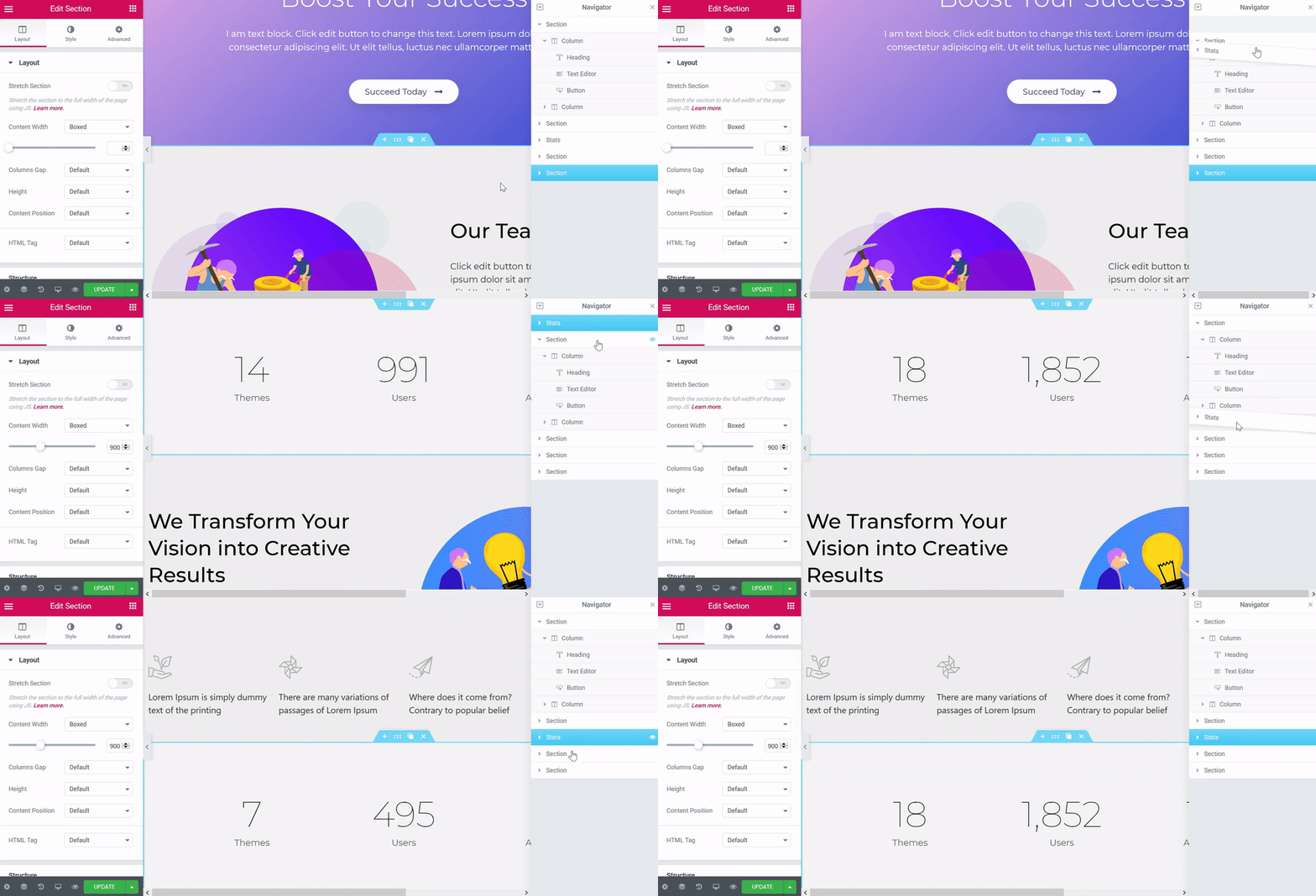
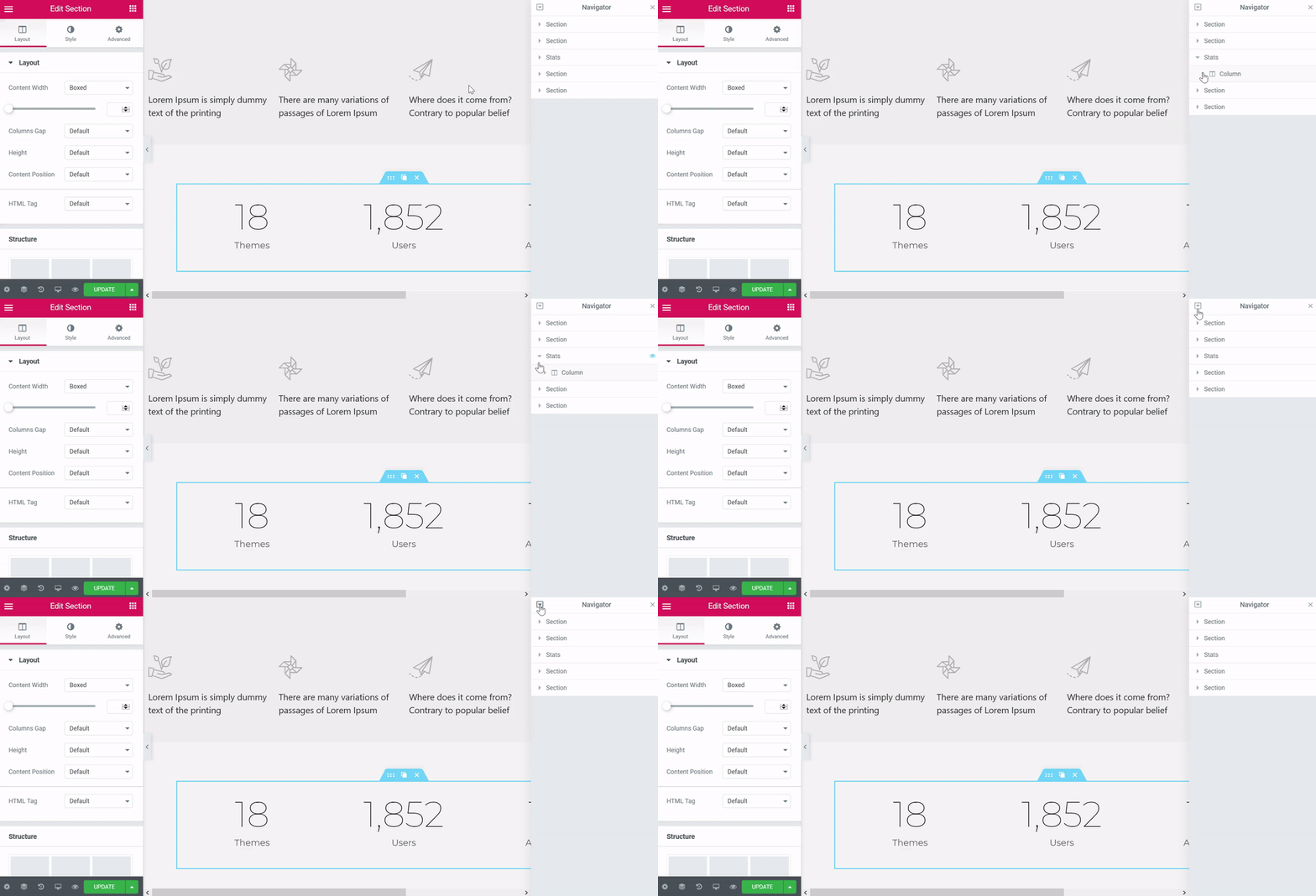
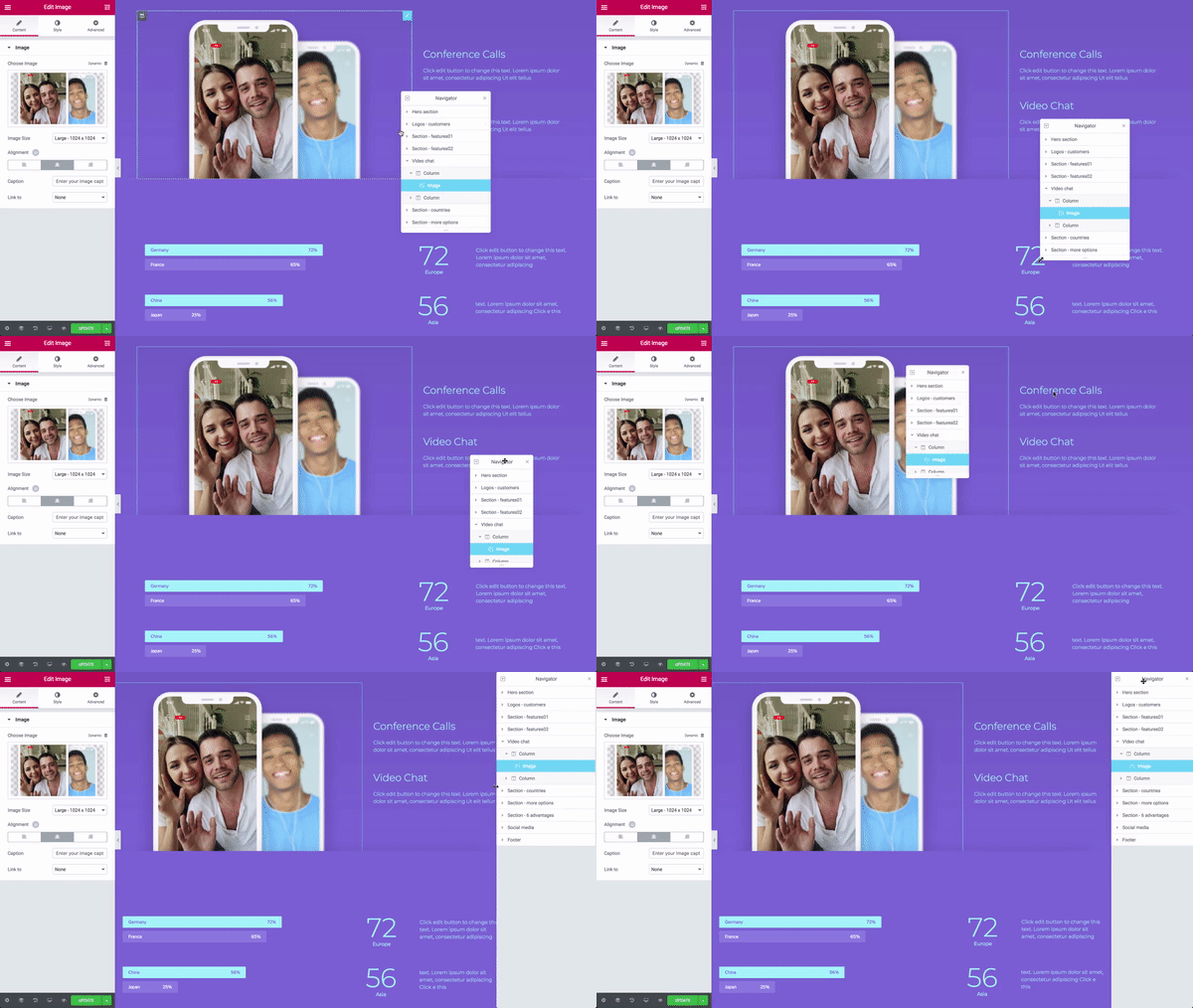
It is a tree window which lets you access in editors each element. With the drag and drop feature, it surfs throughout the long form page. Thus you may edit the page and post at ease.

The long form page editors will benefit from the navigator. This also supports multi-layered designs. Z-Index, negative margin, as well as position absolute, are using for combining elements. Further, you can control over the whole editing process.

Let’s have a look on other facilities the navigator will provide the newbie copy readers.


  • A view over a panel with sections, columns and widgets.
  • No chance to get confused while dealing with the long page in elementor. The navigator has options to custom each elements name. All you need to press two times on items.
  • Drag the navigator and fix anywhere on the page. The height and width are adjustable so you can pin it to any side of the screen.

How to Manage Your Entire Layout by Navigator?

Most of you should know that how to access navigator. If you are not, check in Introducing Elementor 2.2: Visual Page Building Reinvented.

Now we are jumping on how to manage your entire layout by the navigator.

1st step: choose any element and drag to edit panel.


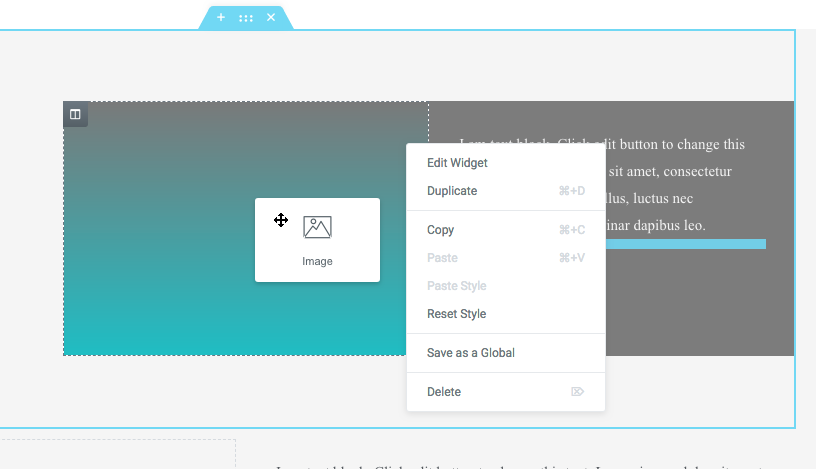
2nd step: the right-click menu option which will enable to edit, duplicate, copy and paste.


3rd step:  choose to the preference of show or hide elements.


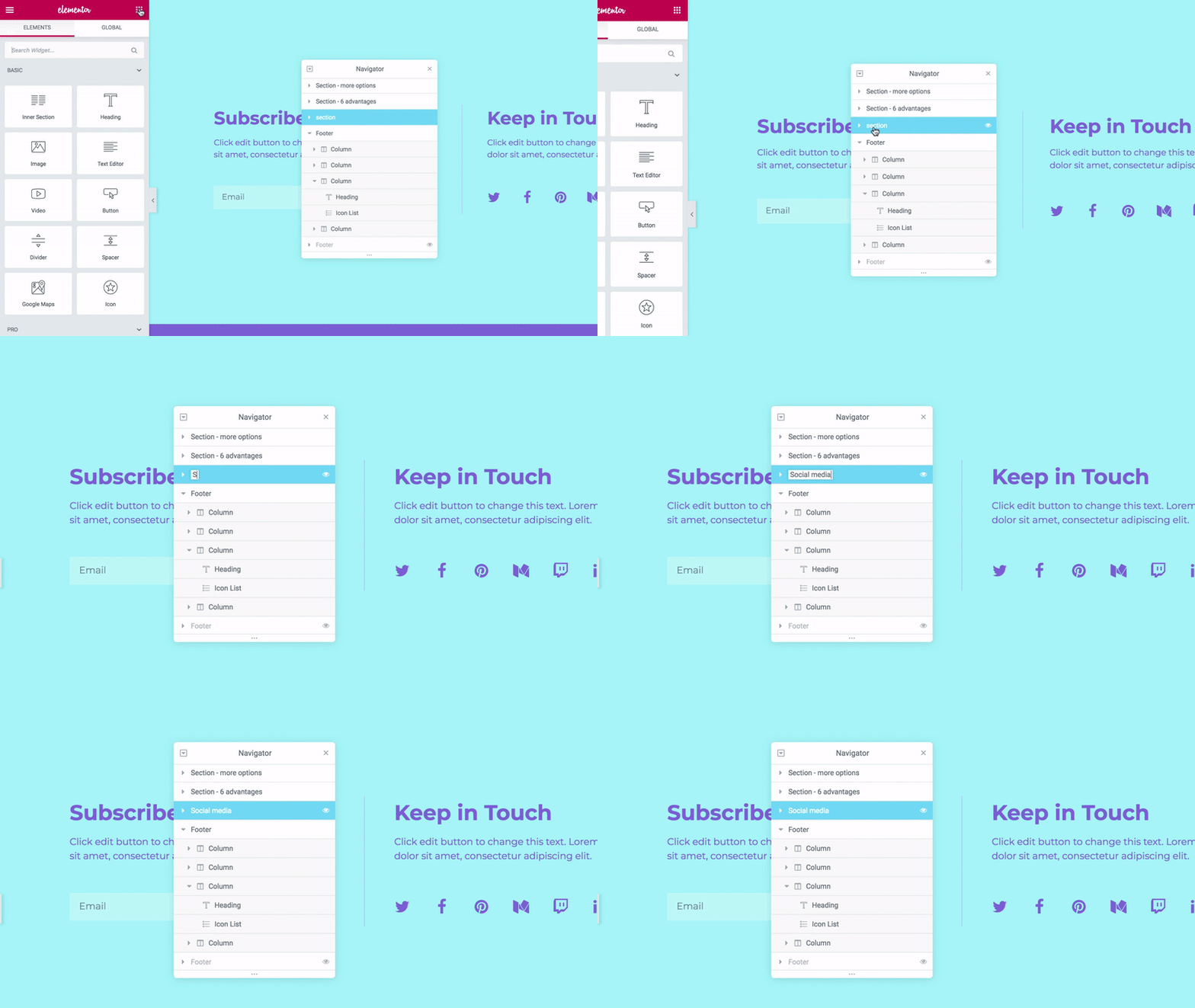
4th step: double-click on the elements name which will turn to blue highlighter. The blue highlighter will offer to insert and customize the components name.


5th step: expand or collapse one or all origins with up  and down arrow button.


Bonus editing feature

Float: dragging the panel on anywhere of the page is a float.


Dock: a vertical blue drop area when dragging the panel near the right side of the screen. Now user can drop the page inside anyplace.


How would you like to watch this video?


Conclusion

The standard visual page builder is now which one? It is Elementor. The designer and content developers’ guesswork and stress have removed for this one. While describing the navigator panel, hope you can understand how this will satisfy. Extending the content becomes more challenging for you to navigate through the page. The different sections, playing with elements will experience you more rather than other one’s navigator panel. Switch to Elementor navigator panel and grasp the inclusive page design.

Further in future, voidcoders will introduce you to the challenging UI features of Elementor. For supplementary, leave your message in the comment section.